Shopify ships updates constantly, new features, API changes, theme adjustments, and platform improvements that can directly affect how your store or app works. Keeping up with the Shopify changelog is how merchants and developers stay ahead of breaking changes instead of scrambling to fix things after they go live. But finding the right changelog for your specific needs isn't always straightforward, since Shopify spreads its updates across multiple sources.
If you're a product manager or developer building on Shopify, you already know how critical it is to track platform changes. You also know that your own users expect the same level of transparency from you. That's exactly what we help with at Koala Feedback, giving product teams a central place to collect user feedback, prioritize features, and share a public roadmap so customers always know what's coming next. Shopify does this well across their ecosystem, and it's a model worth studying.
This article breaks down where to find every type of Shopify update, from merchant-facing product announcements to developer-focused API and Liquid changes. You'll learn what each changelog source covers, how often it's updated, and which ones matter most depending on your role. Whether you're monitoring for deprecated endpoints or just want to know what new tools are available for your store, this guide points you to the right place.
The term "Shopify changelog" doesn't point to a single document. Shopify maintains separate update logs for different parts of its platform, each aimed at a different audience. Understanding what each one tracks, and what it deliberately leaves out, helps you focus on the right sources instead of scanning through updates that don't affect your work at all.
Shopify documents changes across several major categories. The merchant-facing product updates cover new features in the admin, changes to checkout, updates to payment processing, and adjustments to existing tools like discounts, shipping, and analytics. These are the updates that affect how you run your store day to day, and Shopify typically announces them through its What's New section and the Shopify blog.
On the technical side, Shopify tracks API versioning and deprecation notices in its developer changelog. This is where you'll find breaking changes to the REST Admin API, GraphQL API, and Storefront API. Each API version has a defined lifecycle, and Shopify publishes scheduled release and deprecation dates well in advance so developers can plan migration timelines without scrambling at the last minute.
Shopify releases new API versions quarterly, and each version stays supported for a minimum of 12 months before deprecation begins, giving developers a predictable window to adapt.
The developer changelog also covers Liquid template changes, which affect theme developers directly. Updates to Liquid objects, filters, and tags appear here, along with changes to Online Store 2.0 components, section schemas, and app blocks. If you build or maintain a custom Shopify theme, these entries are some of the most relevant you'll track in the shopify changelog ecosystem.
Not everything that changes on Shopify's platform makes it into a formal changelog. Internal infrastructure changes, such as performance improvements to Shopify's servers or backend processing adjustments, rarely appear in public-facing update logs unless they have a direct and visible impact on merchants or developers. Shopify handles those changes on their end without requiring any action from you.
Pricing and plan adjustments also tend to land in direct communications, like email notifications to account holders, rather than in the changelog. The same applies to partner program changes and app store policy updates, which Shopify communicates through the Partner Dashboard and separate policy documentation rather than appending them to version history logs.
Another significant gap is granular bug fix history. Shopify documents major resolved issues when they affect a broad set of users, but minor bug fixes often ship silently without a corresponding entry. This is common practice across SaaS platforms, and it means that if you noticed a behavior change in your store but see nothing in the changelog, a quiet bug fix may still be the explanation. Reaching out to Shopify support directly is usually the fastest way to confirm what changed.
Knowing what the changelog covers shapes how you monitor updates. If you rely solely on the merchant product updates, you'll miss API deprecations that could break your custom app integrations. If you only read the developer changelog, you'll skip over new merchant tools that could streamline your store operations or open up new selling opportunities.
The most effective approach treats each changelog source as a separate feed tailored to a specific role. From there, you determine which ones are relevant to your day-to-day responsibilities and track only those consistently. The following sections walk through exactly where to find each type of update and how to stay on top of them without checking a dozen different pages manually.
Merchants don't need to dig through developer documentation to find out what changed in their store admin. Shopify maintains dedicated sources for product updates that are written for a non-technical audience, covering new features, updated tools, and changes to the merchant experience. Knowing where to look saves you from missing announcements that could directly improve how you run your store or affect your current workflows.
Your first stop for merchant-facing updates is Shopify's What's New page, found within the Shopify Help Center. This page lists recent feature releases and changes to the admin in plain language, organized by date. Entries here typically explain what changed, why it changed, and what you need to do, if anything, to take advantage of the update or adjust your existing setup.
Shopify's What's New page focuses specifically on changes that affect how merchants interact with the platform, making it the most efficient single source for day-to-day store operators.
The page covers updates across core admin areas including checkout, discounts, shipping, products, and analytics. Each entry is brief and practical, so you can scan it quickly without reading through anything outside your area of interest.
Shopify uses its official blog to announce larger releases and seasonal feature drops. These posts go deeper than the What's New page, often including screenshots, walkthroughs, and context about why a feature was built. When Shopify launches something significant, like a major checkout update or a new sales channel, the blog is usually where you'll find the full picture.
Beyond the blog, Shopify Community forums serve as a practical resource for understanding how updates land in real stores. Merchants and Shopify staff both participate, and you'll often find threads that clarify how a new feature works in specific scenarios the official documentation didn't anticipate. Community posts also surface unofficial workarounds and edge cases that don't make it into formal release notes.
If you manage a Shopify Partner account, whether as an agency, developer, or affiliate, the Partner Dashboard includes a dedicated announcement feed. This feed covers merchant-relevant updates that intersect with partner work, such as new app capabilities, theme requirements, and platform policy changes that affect how you build or support stores. Checking this feed regularly keeps you informed about changes that might require action on behalf of your merchant clients before they notice anything themselves.
Developers working with Shopify's APIs need a different set of sources than merchants. Platform behavior can shift between API versions, and missing a deprecation notice means your app could break without warning when a version reaches end-of-life. Knowing exactly where Shopify documents technical changes lets you stay ahead of those transitions instead of reacting to broken integrations.
The Shopify developer changelog, found at shopify.dev/changelog, is the primary source for technical updates. This is where Shopify logs API releases, endpoint deprecations, new GraphQL fields, Liquid changes, and updates to the App Bridge framework. Each entry includes the date, the affected API or component, and a clear description of what changed and whether any action is required on your end.
The developer changelog is versioned by API release cycle, so you can filter entries by specific API versions to see exactly what changed between the version you're running and the one you plan to migrate to.
Entries in this log are written for developers, so they skip the simplified explanations you'd find in the merchant-facing What's New page. You'll see specific field names, deprecated endpoints, and direct links to updated reference documentation so you can jump straight into the technical detail without hunting for it elsewhere.
Shopify's API versioning page explains the release schedule and support lifecycle for every API version. Shopify ships a new API version quarterly, labeled by year and quarter. Each version remains stable and supported for at least 12 months, and Shopify lists the exact dates when each version moves into the unstable, release candidate, stable, and deprecated stages.
Checking this page alongside the shopify changelog helps you build a clear migration timeline. When you see that a version you depend on is approaching its deprecation date, you have enough runway to audit your app's API calls, update your endpoints, and test the new version before the old one stops working.
Shopify publishes several open-source libraries and toolkits on GitHub, including Polaris, App Bridge, and the Shopify CLI. Each repository maintains its own release notes and changelog files, which cover version bumps, breaking changes, and new features specific to that tool. If you build custom storefronts or use Shopify's developer tools in your workflow, monitoring these repositories directly gives you earlier visibility into changes than waiting for announcements to appear in official documentation.
Manually checking multiple sources every week is a reliable way to miss something important. Shopify provides structured ways to subscribe to updates so changes come to you instead of requiring you to hunt for them. Setting up the right combination of subscriptions and tracking systems takes about 30 minutes upfront and saves you from constantly revisiting the same pages looking for new entries.
The Shopify developer changelog at shopify.dev offers an RSS feed you can plug into any feed reader. This means every new entry appears in a single stream alongside other technical blogs or documentation feeds you already follow. RSS is particularly useful for teams that monitor multiple API versions simultaneously, since you can set up filtered views based on keywords like "deprecated" or "GraphQL" to catch the entries that require action before they get buried under routine announcements.
Subscribing to the developer changelog RSS feed ensures you see new shopify changelog entries the day they publish, not days or weeks later when the impact is already affecting your app or store.
For merchant-facing updates, Shopify's email newsletter and product announcement emails deliver new feature releases directly to your inbox. Opting into these communications through your Shopify admin keeps your team informed without requiring anyone to check the What's New page manually. If your store is managed by multiple people, make sure at least one person with admin access has notifications turned on so updates don't fall through the cracks.
Subscriptions handle the incoming stream of updates, but you also need a system for logging and reviewing changes that matter to your specific setup. A simple shared document or spreadsheet where your team records relevant updates, the date they were published, and any action required works better than relying on memory or inbox search. Include a column for priority and status so you can distinguish between updates you've already addressed and ones still waiting for review.
If you manage a Shopify app or custom storefront, tagging your internal notes by API version or affected component makes it easy to surface relevant history when you're planning a migration or investigating unexpected behavior. Treat your tracking log as a living reference document rather than an archive. Reviewing it at the start of each sprint keeps your team aligned on what changed recently and what still needs attention before it becomes a problem.
Not every changelog entry requires action, and treating them all as urgent is a fast way to burn out your team on update fatigue. Reading an entry critically means extracting the specific details that tell you whether the change affects your store or app, and how soon you need to respond. A structured approach to reading entries turns a dense wall of release notes into a clear decision.
A well-formatted Shopify changelog entry follows a consistent structure. It typically opens with a date and version label, then identifies the affected component, whether that's a specific API endpoint, a Liquid filter, a checkout behavior, or an admin feature. After that, the entry describes what changed, why it changed, and whether any migration steps are required. Some entries include links to updated reference documentation, which is where you'll find the full technical detail if the summary alone isn't enough.
Pay close attention to the language used in the description. Words like "deprecated," "removed," or "breaking change" signal that your existing code or configuration may stop working if you don't act. Softer language like "improved," "updated," or "added" typically indicates additive changes that won't break anything but may unlock features worth implementing. Sorting your reading by urgency based on this language alone saves significant time.
A single word like "deprecated" in a changelog entry can mean the difference between a planned migration and an emergency fix, so read every entry with that distinction in mind.
Once you understand what the entry describes, match it against your current implementation. If the change involves an API endpoint you don't call, a Liquid filter you don't use, or an admin feature unrelated to your workflow, you can mark it as reviewed and move on. If there's overlap, identify exactly which part of your store or app is affected before deciding on a timeline for response.
Bring in the right person for each assessment. A developer should evaluate API and Liquid changes, while a merchant or operations lead is better positioned to assess admin feature updates. Splitting this responsibility by role prevents technical entries from sitting unread in a general inbox and keeps decisions in the hands of the people who can act on them quickly. Document your assessment outcome in your tracking log so the team has a clear record of what was reviewed and what was decided.
Finding a relevant entry in the Shopify changelog is only the first step. What matters more is how quickly and accurately you act on it. A structured response process keeps you from either overreacting to minor updates or underestimating changes that actually require immediate work.
Start by confirming the scope and timeline of the update. If the entry describes a deprecated API endpoint, check your codebase to see whether you're actively calling it and note the exact deprecation date. If it's a new admin feature, determine whether it replaces something you've already built a workaround for.
Skipping triage and jumping straight into fixes often means spending time on changes that don't actually affect your implementation, so confirm impact first.
Once you know the update is relevant, assign a priority level based on urgency and effort. Breaking changes approaching their deprecation window get immediate attention. Additive features with no deadline get scheduled into your normal development cycle. This distinction keeps your team focused on what actually needs to ship now versus what can wait until next sprint.
Before you apply any changes to a live store or production app, reproduce the affected behavior in a development environment. Shopify provides sandbox stores and staging environments precisely for this purpose. Run your updated code against the new API version or feature behavior and confirm it works the way the changelog entry describes before pushing anything live.
Skipping this step is where most integration failures and store disruptions originate. Even a seemingly small update to a Liquid filter or a GraphQL field structure can produce unexpected output if your templates or app logic depends on the previous behavior. Testing first gives you a controlled space to catch and fix issues without your customers ever noticing anything broke.
Once you've resolved the impact, record what you did and why in your internal tracking log. Include the changelog entry date, the specific change you addressed, what you modified in your store or app, and who made the update. This documentation becomes valuable the next time a related change ships and your team needs to understand the history of your implementation decisions.
If the update affects something customer-facing, loop in whoever handles user communications on your team so they can set accurate expectations with customers before any visible changes go live.
Tracking Shopify's updates internally is only half the job. Once you've assessed how a shopify changelog entry affects your store or app, your users often need to know what changed and why. Transparent communication about platform updates builds trust with your customers and reduces the volume of confused support tickets that follow any visible change in your product.
When a Shopify update changes something your users interact with directly, such as a new checkout flow or a modified product page layout, write a brief update explaining what changed from their perspective. Skip the technical detail unless your audience is developers. Focus on what they'll see differently and whether they need to take any action. A short, clear update posted to your public roadmap or changelog takes less than 30 minutes to write and prevents a wave of confused inbound messages that pull your support team away from higher-priority work.
Sharing updates proactively, rather than waiting for users to notice something changed, is one of the most effective ways to reduce churn tied to unexpected platform shifts.
Timing also matters here. Publishing your user-facing update before or at the same time the change goes live keeps your customers informed rather than surprised. If the Shopify change requires any action on their end, such as reconnecting an integration or reviewing a new setting, make that the first sentence of your update rather than burying it at the bottom where most readers won't reach it.
Shopify updates frequently spark new user requests because customers adapt their expectations based on what the platform now makes possible. A new native Shopify feature might invalidate a workaround your users currently rely on, or it might open up demand for a complementary feature in your own product. Treating this feedback as signal rather than noise helps you make better roadmap decisions grounded in what your users actually need next rather than what seems interesting internally.
Centralizing that feedback in one place is critical. With Koala Feedback, you give your users a dedicated space to submit ideas and vote on requests, so when a Shopify update triggers a wave of similar feedback, you can identify patterns quickly instead of sifting through scattered emails and support threads. That visibility lets you prioritize the features that matter most to your actual users rather than guessing based on whoever was loudest in the last support call.
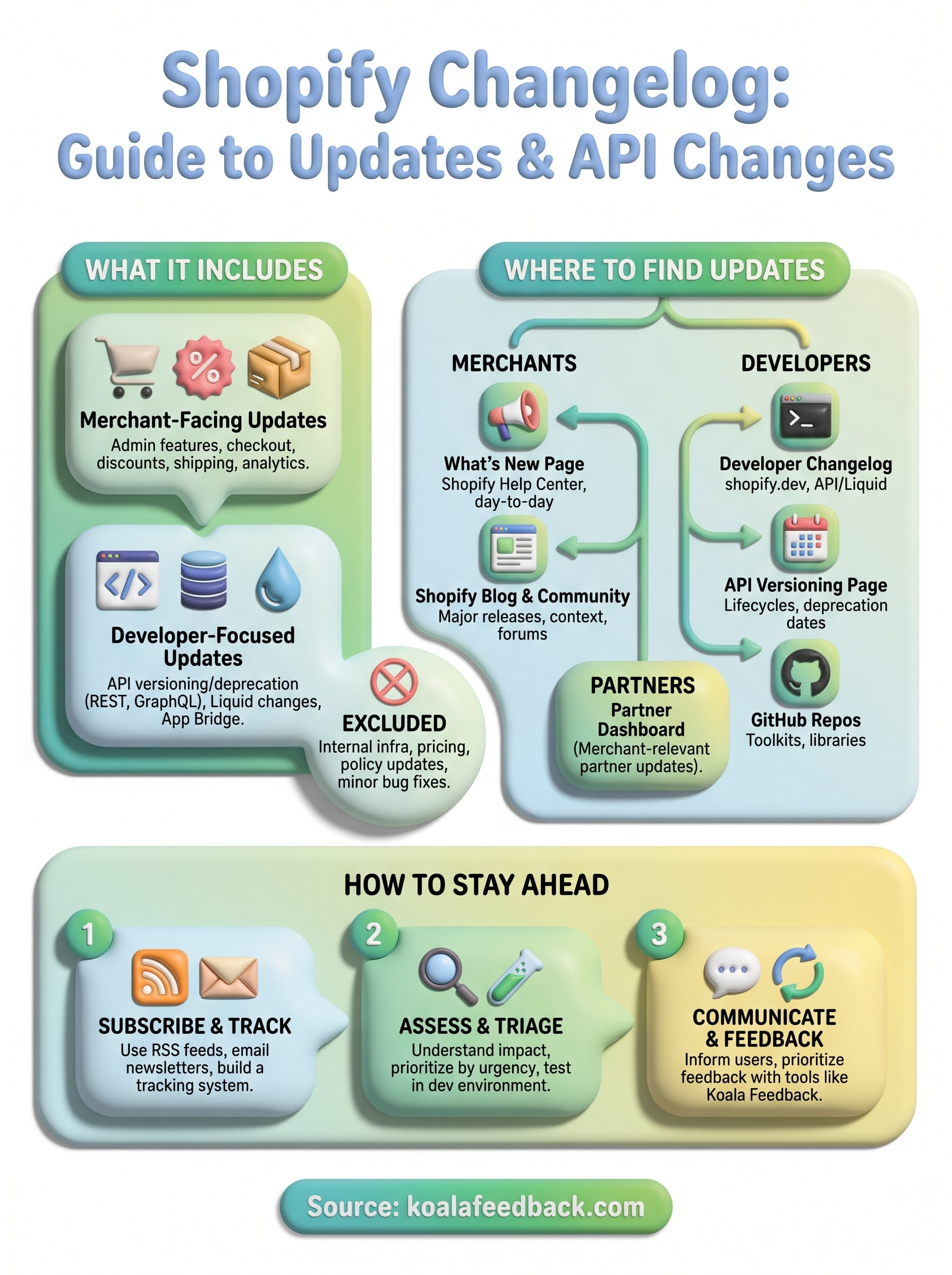
Staying on top of the Shopify changelog doesn't require a complicated system. Pick the sources that match your role, subscribe to the right feeds, and log relevant updates in a shared document your team can reference. That three-step approach covers the vast majority of situations without demanding significant time each week.
The bigger challenge is what happens after you track a change. Your users notice platform shifts too, and they'll have questions, requests, and feedback tied directly to what Shopify just shipped. Giving them a structured place to submit that feedback, rather than letting it scatter across emails and support tickets, makes your prioritization decisions sharper and faster. Koala Feedback gives your team a centralized space to collect user input, organize feature requests, and share your public roadmap so your customers always know what you're building next and why.

Start today and have your feedback portal up and running in minutes.