Slack ships updates constantly, across desktop, mobile, and its developer platform. Keeping up with every change isn't easy, especially when there's no single Slack changelog page that covers everything. Instead, Slack splits its release notes across multiple official sources, each serving a different audience and platform.
Whether you're a product manager tracking how Slack rolls out features, a developer building on the Slack API, or just someone who wants to know what changed after the latest update, finding the right page matters. Some of these sources are well-known, others are buried deep in Slack's documentation and easy to miss entirely.
This article rounds up 9 official Slack release note and update pages so you can bookmark the ones relevant to you. And if Slack's approach to communicating product changes inspires you to do the same for your own product, tools like Koala Feedback make it straightforward to collect user feedback, prioritize what to build, and share your roadmap publicly, so your users always know what's shipping and what's next.
Koala Feedback is a SaaS platform built for product teams that want to collect user feedback, prioritize feature requests, and share a public roadmap with their users. While it isn't a Slack product, it solves a problem that Slack's own changelog approach highlights clearly: users need one centralized place to see what's changed, what's planned, and what their feedback actually influenced. Koala Feedback gives your product that exact structure, and it makes a strong model to study if you're thinking about how to communicate product changes to your own users.
Koala Feedback covers the full feedback lifecycle from submission to shipped feature. You can use it to capture user ideas and requests through a dedicated feedback portal, organize those requests into boards by product area, and track each item through your development process with customizable status labels. The platform also includes a public roadmap where you mark features as planned, in progress, or completed, giving users a live view of your team's priorities at any point in time.
Users who submit feedback can vote on other requests, leave comments, and follow specific items they care about. This means your roadmap stays connected to real user demand rather than sitting as a static document your team updates occasionally. The voting data surfaces what matters most to your users, so prioritization decisions have a foundation in actual evidence.
The platform separates feedback into prioritization boards, which you can name and structure however fits your product lines or feature categories. Each board holds individual feature requests, and you apply customizable statuses to each item to reflect exactly where it sits in your workflow. You're not locked into a preset pipeline that doesn't match how your team operates.
Your public roadmap pulls from those boards and displays items under whatever status labels you've defined. The result is a feedback-to-roadmap pipeline that keeps your internal process and your public-facing communication in sync without requiring you to maintain two separate systems or copy information between tools.
Koala Feedback is built for product managers and SaaS founders who need a structured way to handle user input without building a custom solution from scratch. If you currently collect feedback through email threads, spreadsheets, or ad-hoc Slack messages, this platform replaces that scattered approach with a single source of truth your whole team can reference.
When users don't have a clear, dedicated place to submit and track their requests, their feedback gets lost and your product decisions become harder to justify with data.
Development teams also benefit directly. When a prioritized backlog connects to a visible roadmap, engineers spend less time fielding repeat questions about what's shipping next, because users can check the roadmap themselves instead of reaching out.
Slack's fragmented changelog model, spread across separate pages for Mac, Windows, iOS, Android, and the API, shows exactly why a centralized update hub has real value. Rather than pointing users to multiple locations, Koala Feedback lets you consolidate all product updates into one branded portal on your own domain. You publish updates through the roadmap, users see what shipped and what's coming, and your team controls the communication in one place.
To put this into practice, create a public roadmap on your Koala Feedback portal and use the status system to log completed features the same way a traditional changelog entry would work. Each completed item functions as a release note. Users who voted on that feature receive a notification automatically, which closes the feedback loop without any extra manual work on your end.
Slack's Help Center hosts a dedicated changelog category that serves as one of the more comprehensive entry points for tracking product updates. Unlike platform-specific release notes, this category pulls together articles about feature changes across Slack's broader product, making it a reasonable first stop when you want context around a specific update rather than just a version number.
The Help Center changelog category covers feature additions, interface changes, and policy updates that Slack rolls out to users across plans and platforms. You'll find articles explaining what changed, why the change happened, and how it affects your workflow. Each article focuses on a specific change rather than listing every update at once, so the coverage is topical and searchable rather than strictly chronological.
Your experience with this format differs from reading a raw slack changelog entry on a desktop release notes page. Slack often links directly to these articles from in-app notifications, so there's a good chance you've landed on one before without realizing it belonged to a larger organized category.
Articles in this category are grouped by topic and publish date, and Slack's Help Center search function lets you filter by keyword. There's no numbered version system attached to articles here, which can make it harder to track changes in strict sequence. Instead, the organization follows a content-first model where each article stands on its own and explains a single change in full.
This category works best for non-technical users and team administrators who want to understand what changed and how to adapt, without digging into developer documentation. When someone on your team notices a UI shift or a missing feature, pointing them here gives them a starting point with plain-language explanations written for everyday users rather than engineers.
This page is especially useful when a change affects how your team uses Slack day-to-day, because the articles explain the "why" behind updates, not just the "what."
To surface the most recent articles, use Slack's Help Center search bar and sort results by date. You can browse the changelog category directly and check publish dates on each article. Saving a browser bookmark to the changelog category page cuts down time whenever you want to check for updates without navigating through Slack's full Help Center from the homepage each time.
Slack's updates and changes page operates differently from the Help Center changelog category. Where the Help Center articles dig into feature explanations with full context, this page functions more like a running log of product decisions that Slack wants users to know about before or as they happen. If you've missed an announcement or want a quick reference for what Slack changed over a given period, this page gives you a direct line to that information.
This page focuses on modifications to existing features, policy shifts, and deprecations rather than brand-new feature announcements. You'll find entries about things like changes to how Slack handles notifications, adjustments to plan features, and updates to how specific tools inside Slack behave. It's the kind of content that doesn't always make it into a slack changelog entry on a platform-specific release notes page, but still affects how your team uses the product daily.
Entries appear in reverse chronological order, so the newest updates sit at the top. Each entry is brief and written in plain language, making it faster to scan than a full Help Center article. Slack doesn't attach version numbers to entries here, which means you're reading about changes by date and topic rather than by software build. This format works well for tracking what shifted week over week without needing to cross-reference a specific app version.
Team administrators and workspace owners get the most value from this page. When Slack adjusts a default setting or removes a feature, admins are usually the first people their colleagues ask about it. Checking this page regularly keeps you ahead of those questions. Support staff who handle internal Slack questions for their organizations also benefit, since the entries explain changes in terms that translate directly into user-facing answers.
Platform-specific release notes tell you what changed in a particular app build, but they don't always explain why something in your workspace now behaves differently. That gap is where this page fills in. If a Slack feature your team relied on stops working or looks different without a clear trigger, checking the updates and changes page often surfaces the reason faster than digging through Mac or Windows release notes.
This page is the right starting point when the change you noticed is about Slack's behavior as a product, not just a bug fix in a specific app version.
Slack's What's New page takes a different approach from both the Help Center changelog category and the updates and changes page. It focuses specifically on new features and improvements Slack wants to highlight, written in a way that feels closer to a product announcement than a technical log. If you want a quick overview of what Slack has been building recently, this page gives you that picture without requiring you to dig through multiple sources.
The What's New page covers recently launched features, significant UI improvements, and productivity enhancements that Slack rolls out across its platform. You'll find highlights for things like new workflow tools, collaboration features, and integrations that Slack considers worth calling out directly. This page skips over minor bug fixes entirely, so it reads more like a curated summary of meaningful changes rather than a comprehensive slack changelog for every build.
Entries on this page appear in reverse chronological order by launch date, with each update given its own short description and sometimes a supporting image or short video. Slack keeps the writing brief and benefit-focused, explaining what the feature does and how it affects your day-to-day use rather than listing technical specifications. There are no version numbers attached to entries here, so you're tracking updates by date rather than by software build.
This page works best for product managers and team leads who want a high-level view of what Slack has shipped without reading through platform-specific release notes. It's also useful for business owners evaluating Slack for their teams, since the feature highlights give a clear sense of what the product prioritizes and where it's headed. Developers and system administrators who need granular technical details will likely find the developer changelog or platform-specific release notes more useful.
If your job involves keeping your team informed about tool changes, this page gives you a fast, low-effort way to stay current without parsing raw release notes.
Not every feature on this page appears for every workspace at the same time. Slack rolls out changes gradually, which means you might read about a feature here before it shows up in your account. To check availability, look for any plan or tier labels attached to the entry, since some features are limited to paid plans. If a feature is listed but not visible in your workspace, check your plan settings or contact your workspace admin to confirm eligibility.
Slack maintains a dedicated release notes page for its Mac desktop application, separate from its mobile and Windows versions. This page logs every build update shipped to macOS users, including bug fixes, performance improvements, and occasional feature additions that appear first on desktop. If you run Slack on a Mac and something breaks or changes after an update, this page gives you a version-specific record to reference.
The Mac release notes page covers incremental app updates delivered through the Mac App Store and the direct download version of Slack. Each entry lists what Slack changed in that specific build, with a focus on fixes and stability improvements rather than major feature announcements. You won't find marketing language here. The entries read like a technical log, short, factual, and scoped to what actually changed at the code level.
Entries appear in reverse chronological order with each version number listed alongside its release date. Slack groups fixes and improvements under the relevant build number, so you can scroll directly to the version installed on your machine and read exactly what that update addressed. The format is consistent across entries, which makes it easy to compare changes between builds without adapting to a different layout each time.
This page is one of the few places in Slack's documentation where you get a direct connection between a version number and a specific change, which makes it far more precise than a general slack changelog article.
Mac users and IT administrators who manage Slack deployments across a team get the most direct value from this page. When a colleague reports an issue after updating, you can pull up the release notes for that build and check whether Slack already addressed it in a later version. Power users who keep Slack updated manually rather than through auto-updates also benefit, since the notes help them decide whether a new build is worth installing based on what it fixes.
Open Slack on your Mac, go to the Slack menu, and select "About Slack" to find your current version number. Once you have that number, locate the matching entry on the Mac release notes page. If the issue you're experiencing isn't listed under your current build, check whether a newer version exists that addresses it. This process saves you time before filing a bug report or contacting Slack support, since the fix may already exist in a build you haven't installed yet.
Slack keeps a separate release notes page for its Windows desktop application, distinct from its Mac and mobile counterparts. This page logs every build update pushed to Windows users, giving you a precise record of what changed in each version. Whether you use the desktop app downloaded directly from Slack or the version distributed through the Microsoft Store, this page covers both tracks and keeps their histories in one place.
The Windows release notes page documents bug fixes, performance improvements, and small feature additions that ship with each new build of the Windows desktop application. Like the Mac equivalent, it reads as a technical log rather than a feature showcase, so you won't find promotional language here. Each entry focuses on what actually changed in the code, which makes it a reliable reference when something in your Slack client starts behaving differently after an update.
Entries appear in reverse chronological order, with each build listed by its version number and release date at the top of the entry. Slack keeps the format consistent across all builds, so you can quickly locate a specific version and read through its changes without adjusting to a different layout each time. This predictable structure makes the Windows page one of the easier platform-specific sections to scan when you're tracking a particular fix across recent builds.
The version-by-version structure here gives you something a general slack changelog article can't: a direct connection between a specific build number and a documented change.
IT administrators and help desk teams who manage Slack across Windows machines at scale get the most direct value from this page. When users on your team report an issue tied to a recent update, you can pinpoint the relevant build and confirm whether a fix already exists in a newer version. Windows power users who prefer to control their own update schedule also benefit from reading through entries before installing a new build, since the notes help you evaluate whether an update is worth applying immediately.
Before submitting a bug report to Slack support, open Slack on your Windows machine and navigate to Help, then About Slack to pull your current version number. Match that number against the Windows release notes page to confirm whether your version already includes a fix. If a newer build exists that addresses the problem, install it first and test again. This step prevents duplicate reports and cuts down the time it takes to reach a resolution.
Slack publishes release notes for its iOS application through the Apple App Store, and these notes appear each time Slack pushes a new version of the app to iPhone and iPad users. Unlike the desktop platform pages, iOS release notes live inside Apple's ecosystem rather than on Slack's own website, which means your access point is different and the format follows Apple's App Store conventions rather than Slack's internal documentation style.
The iOS release notes cover bug fixes, stability improvements, and occasional feature additions that ship with each new version of the Slack app for iPhone and iPad. Some updates focus entirely on performance, addressing crashes or sync issues that affected users on specific iOS versions. Others include new functionality that Slack rolls out to mobile users, sometimes before it reaches desktop. The notes don't go into deep technical detail, but they give you enough context to understand what changed in a given build.
Each entry in the App Store corresponds to a specific version number and displays the date Slack submitted the update for review. Apple shows the most recent release at the top, with older versions accessible by tapping "Version History." The format is brief and written for general users rather than developers, and each entry typically runs just a few sentences covering the highlights of that release.
This version history view in the App Store is one of the faster ways to check whether a recent build addressed a known issue without navigating through a separate slack changelog page.
iPhone and iPad users who notice behavioral changes after an automatic update will find these notes useful for confirming what Slack actually changed in a specific build. IT administrators who manage mobile device management policies for their organizations also benefit, since the version history helps them track which builds are in circulation before pushing updates to managed devices company-wide.
Mobile release notes for Slack tend to be less detailed than their desktop counterparts. You'll often see broad descriptions covering "bug fixes and performance improvements" without specifics about which bugs were resolved or what triggered the performance issues. When Slack does include a specific feature mention, that's a reliable signal the change is significant enough to call out directly. If you need granular detail about what changed in a particular iOS build, Slack's Help Center articles and the updates and changes page typically fill that gap better than the App Store entry alone.
Slack publishes release notes for its Android application through the Google Play Store, updating them each time a new version of the app goes live for Android users. Unlike the desktop platform pages that live on Slack's own documentation site, these notes follow Google Play's listing format, which means you access them directly inside the Play Store rather than through any separate Slack web page.
The Android release notes cover bug fixes, stability improvements, and feature additions that ship with each new version of the Slack app for Android phones and tablets. Some builds focus entirely on resolving crashes and sync issues specific to Android versions or device manufacturers, while others introduce mobile-first improvements that give Android users new functionality. The notes don't go into deep technical depth, but they give you a workable summary of what changed between the version you're running and the one Slack just pushed.
Each Play Store listing entry corresponds to a specific version number, and Google displays the most recent release at the top of the "What's New" section. You can tap into the full version history to see older entries, though the format stays consistent: brief descriptions written for general users rather than engineers, typically covering the major changes in a few sentences. There are no subheadings or categorized fix lists the way you'd see on a desktop slack changelog page, so the information is condensed and to the point.
If you're trying to confirm whether a specific bug was addressed in a recent Android build, the Play Store entry gives you a starting point, but Slack's Help Center articles usually provide more detail for significant changes.
Android users who notice behavioral shifts after an automatic update get the most immediate value from these notes. Checking the Play Store entry takes less than a minute and often confirms whether what you're seeing is a known change or something worth reporting. IT administrators managing Android device fleets through mobile device management tools also use these notes to track which builds are available before pushing updates across managed devices in their organization.
Open the Google Play Store on your Android device, search for Slack, and check the version number listed on the app page. Compare that number against what's shown under "App Info" in your device settings for the installed version. If the Play Store shows a newer version than what you have installed, tap Update to get current before troubleshooting any issue you're experiencing.
Slack maintains a dedicated changelog within its developer documentation, separate from every other update page covered in this article. This page targets API developers and app builders rather than general Slack users, and it logs changes that affect the tools, endpoints, and platform features that third-party integrations depend on. If you build or maintain anything connected to Slack's platform, this is the source you check first.

The Slack Developer Docs changelog tracks API updates, new platform features, deprecations, and breaking changes that affect how apps and automations interact with Slack. You'll find entries about changes to specific API methods, updates to scopes and permissions, modifications to event payloads, and shifts in how Slack handles authentication. Unlike the general slack changelog pages aimed at end users, this log is technical by design and assumes you already understand how the platform works.
Entries appear in reverse chronological order, with each update listed by date and tagged by category. Slack often labels entries to indicate whether a change is a new addition, a deprecation, or a breaking change, which makes it faster to prioritize what you need to read. You don't need to scan every entry to find what's relevant; the category labels handle that filtering work for you.
Breaking change labels in this changelog deserve immediate attention, since they signal that your existing app code may stop functioning correctly after a specified date.
Developers who build Slack apps, bots, and workflow automations get the most direct value from this page. If you maintain a Slack integration for your company or publish an app through the Slack App Directory, missing an entry here can mean shipping broken code. Platform engineers and DevOps teams who rely on Slack's API for internal tooling also need to monitor this page regularly to catch deprecations before they cause production issues.
Two categories of entries require the most attention: deprecation notices and breaking changes. Deprecation notices give you a timeline before Slack removes or changes a feature, so you have a window to update your code before anything breaks in production. Breaking changes, by contrast, may require immediate action before a hard cutoff date that Slack sets and enforces. Build a habit of checking this page at least once a week, or subscribe to Slack's developer newsletter to catch significant entries as they land rather than discovering them after a problem surfaces.
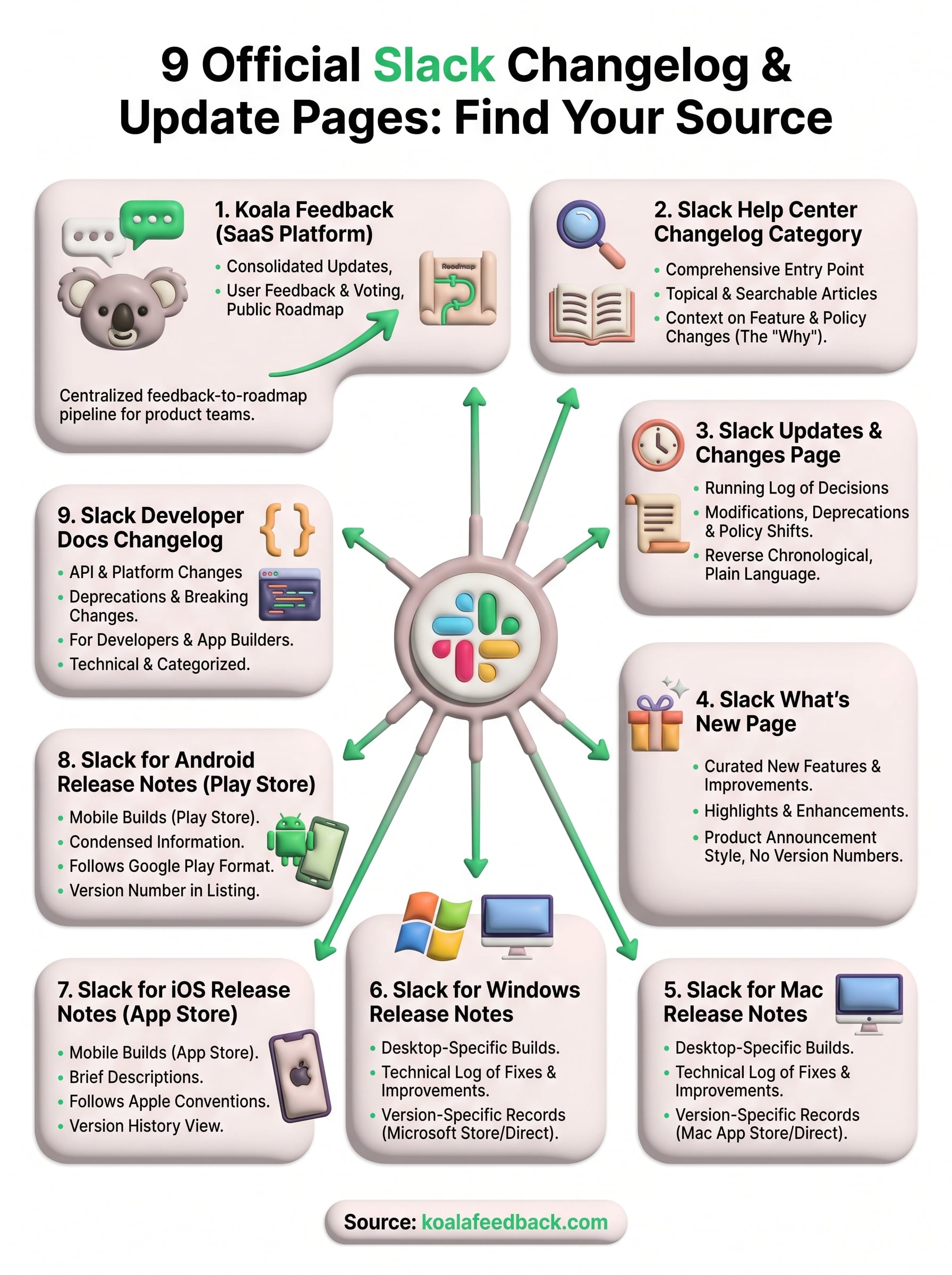
Every source in this list covers a specific slice of Slack's updates, from the platform-specific release notes for Mac, Windows, iOS, and Android to the developer changelog that tracks API changes and deprecations. Bookmarking the pages relevant to your role cuts down the time you spend hunting for information every time Slack ships a new build. If you're on a team, share this article with whoever handles your Slack administration so you're all pulling from the same slack changelog sources.
Slack's fragmented update approach also makes a strong case for doing things differently with your own product. When your users have one clear place to submit feedback, track feature requests, and see what you've shipped, you build trust without extra effort. Koala Feedback gives you that structure out of the box, with a feedback portal, voting system, and public roadmap that keeps your users informed and engaged throughout your entire development process.

Start today and have your feedback portal up and running in minutes.