Slack ships updates constantly, across Windows, Mac, iOS, Android, and Linux, and keeping up with every change can feel like a full-time job. Whether you're a product manager tracking how a competitor communicates changes or a dev team lead making sure nothing breaks after an update, having a single place to review Slack release notes is genuinely useful. The problem is that these notes are scattered across multiple platform-specific changelogs, making it easy to miss what matters.
That's something we think about a lot at Koala Feedback. Our entire platform exists to help teams collect user feedback, prioritize features, and share product roadmaps, the same cycle that Slack's release notes represent from the output side. When a company like Slack pushes an update, it's the end result of listening to users and acting on what they need. We built our tools to make that process easier for everyone else.
This article compiles the latest Slack updates across all supported platforms into one reference. You'll find recent feature additions, bug fixes, developer-facing changes, and security patches, organized so you can find exactly what you're looking for without jumping between five different pages.
The Slack updates and changes changelog is the central place where Slack documents what changed, when, and for which clients. It lists version numbers alongside release dates, so you can tie a specific update to exactly when it landed. If you're trying to figure out why something looks different after an automatic update, this is the first page to check.
This changelog documents feature additions, bug fixes, and performance improvements across Slack's update cycle. Each entry includes a version number and a short description of what changed. You'll find items ranging from UI tweaks and notification behavior changes to deeper infrastructure updates that affect how Slack performs across large workspaces.
Most entries are brief, so if a change affects something critical to your workflow, cross-reference the platform-specific slack release notes for more detail.
Entries appear whenever Slack ships a new build, which means update frequency varies week to week. Some weeks bring multiple entries; others go quiet. Checking it regularly gives you a running picture of how actively Slack is iterating across its client apps.
When you land on the changelog, scan the most recent entries first and look for keywords or feature names that match what you're investigating. Slack typically labels entries with short categories such as "New," "Improved," or "Fixed," which makes it easier to filter by type at a glance. If you're specifically tracking feature releases rather than bug fixes, focus on "New" and "Improved" entries and skip patch notes unless you're troubleshooting a specific issue.
One practical approach is to use your browser's built-in Find function (Ctrl+F or Cmd+F) to search for terms like "notification," "huddle," or "canvas" directly on the page. This saves you from reading through dozens of unrelated entries to locate the update that actually matters to your team.
Not every change in the changelog is self-explanatory. Slack sometimes uses internal feature names or shorthand that don't map neatly to what you see in the app. If you encounter a term you don't recognize, checking the Slack Help Center can fill in the gaps without requiring you to dig through developer documentation.
Keep in mind that the changelog reflects when a build was released, not necessarily when it reaches your device. Auto-update timing varies depending on your organization's IT policies, and enterprise customers often receive staged rollouts that lag behind the published release date. An entry dated last week may not reflect what's currently running on your machine, so always confirm your installed version before acting on anything time-sensitive in the notes.
The Slack for Windows release notes page documents every update shipped to the Windows desktop client. If you manage a Windows environment or just want to understand what changed after an automatic update, this page gives you a version-by-version breakdown that's more specific than the general changelog.
This page lists each Windows client version alongside its release date and a summary of what changed in that build. Entries cover new features, UI adjustments, bug fixes, and performance improvements specific to the Windows application. You won't find mobile changes here; everything on this page applies strictly to the Windows desktop experience.
Slack organizes entries in reverse chronological order, so the newest build always sits at the top. That makes it easy to check whether your current version is up to date without scrolling through months of older entries.
To confirm your installed version, open Slack on Windows, click your workspace name in the top left, and select Help, then About. The version number displayed there maps directly to the entries listed in the Windows slack release notes page. Once you have the number, find the matching entry to see exactly what that build included or fixed.
If your version doesn't appear in the notes yet, your IT team may have delayed automatic updates or rolled out a staged deployment that hasn't reached your machine.
This comparison step matters most when you're troubleshooting a bug or verifying a feature. Knowing your exact version rules out whether the issue predates the fix that was already shipped.
Some Windows builds carry minimum OS version requirements that Slack doesn't always highlight prominently in the notes. Before assuming an update applies to your setup, confirm that your Windows version meets the stated requirements. Older machines running Windows 10 builds below a certain threshold can fall outside support without a clear warning, which leads to update failures that look like network or permission issues on the surface.
The Slack for Mac release notes page works the same way as the Windows equivalent, but focuses entirely on the macOS desktop client. If your team runs on Apple hardware, this is the page that tells you exactly what changed in each build and when those changes shipped.
This page documents version-by-version updates to the Mac client, including new features, bug fixes, and performance changes that apply specifically to macOS. Entries are listed in reverse chronological order with a version number and release date attached to each one. You won't find iOS or Windows changes mixed in here; the scope stays strictly on the desktop Mac application.
Checking this page alongside the general slack release notes changelog gives you a clearer picture when a change behaves differently on Mac than on other platforms, which does happen when Slack ships platform-specific patches.
To find your current version on Mac, open Slack, click the Slack menu in the top menu bar, and select About Slack. The version number shown there matches directly to entries in the Mac release notes page. Find that number in the list to confirm exactly what your build includes.
If the version on your machine is several builds behind the latest entry, check whether macOS Gatekeeper or your organization's device management policy is delaying updates, since both can silently block automatic installs.
Slack periodically raises its minimum macOS version requirement, and those changes appear in the release notes without much fanfare. Before applying a major update in a managed environment, scan the notes for any mention of new OS requirements to avoid compatibility issues on older machines. Apple Silicon and Intel builds have also diverged in some releases, so if you manage a mixed fleet, confirm that the build covers both architectures before pushing an update broadly across your team.
The Slack for Linux beta release notes page tracks updates to the Linux desktop client, which Slack continues to ship under a beta label. This designation matters because it signals that the Linux client can receive changes at a different pace than Windows or Mac, and some features may arrive later or behave differently compared to the stable desktop builds.
This page lists version-specific updates for the Linux client, including new features, bug fixes, and known issues particular to the Linux environment. Slack documents changes in reverse chronological order, making it straightforward to identify what landed in the most recent build. Because the slack release notes for Linux sit separately from the main changelog, checking this page directly is the most reliable way to stay current on Linux-specific changes rather than inferring from the general update log.
If you run Slack on Linux in a production or shared environment, bookmark this page and check it before applying any update that touches workspace-wide settings or integrations.
Slack ships the Linux client in two package formats: a .deb file for Debian and Ubuntu-based systems, and an .rpm file for Fedora and Red Hat-based systems. To confirm which you have installed, open your terminal and run dpkg -l slack-desktop for Debian-based systems or rpm -q slack for RPM-based systems. Your output includes a current version number that maps directly to entries in the release notes, letting you confirm at a glance whether your install is current.

The beta label means Slack does not guarantee feature parity or stability on the same timeline as Windows or Mac. Some updates fix issues introduced in prior Linux-specific builds, so skipping versions can occasionally cause problems that a sequential update would have resolved cleanly. Also watch for dependency requirements that shift between builds, particularly around system libraries, since an update that installs without errors can still behave unexpectedly if underlying dependencies are outdated on your machine.
The Slack for iOS release notes page tracks every update shipped to the iPhone and iPad app. Mobile updates often arrive more frequently than desktop builds, so this page moves faster than its Windows or Mac counterparts, and staying current on it matters if your team relies heavily on Slack from mobile devices.
This page documents version-specific changes to the Slack iOS app, including new features, interface updates, bug fixes, and performance improvements. Entries follow the same reverse chronological format as the other slack release notes pages, with each build tied to a version number and a brief description of what changed. Because iOS and desktop clients sometimes receive the same feature at different times, checking this page helps you understand which capabilities are available on mobile before you communicate those changes to your team.
If you manage a workspace where a significant portion of users access Slack from iPhones or iPads, monitor this page alongside the desktop notes to catch any mobile-specific regressions early.
To find your current iOS app version, open the Slack app on your iPhone or iPad, tap your workspace name at the top of the sidebar, then scroll down to the bottom of the Settings screen. Your current version number appears there and maps directly to entries in the iOS release notes page. Alternatively, you can open the App Store, search for Slack, and tap the app listing to view the version currently installed alongside the full update history Apple displays for that app.
Apple's App Store review process means iOS builds sometimes take longer to reach your device than Slack's internal release date suggests. A build listed in the release notes may not appear as an available update in the App Store for a day or two after the listed date, so if you're waiting on a specific fix, check your App Store update queue directly rather than assuming it installed automatically.
The Slack for Android release notes page tracks every update shipped to the Android app, covering phones and tablets running supported versions of the operating system. Android updates roll out through the Google Play Store and often arrive on a different schedule than iOS builds, so checking this page separately gives you an accurate picture of what's actually available to your Android users rather than assuming it mirrors the iOS release timeline.
This page lists version-specific changes to the Slack Android app, including new features, bug fixes, performance improvements, and interface updates. Entries follow the reverse chronological format consistent with other slack release notes pages, so the most recent build always sits at the top. Because Android and iOS clients don't always receive the same update simultaneously, checking this page alongside the iOS notes helps you identify any feature gaps between platforms before those differences create confusion across your team.
If your organization manages Android devices through an MDM or enterprise mobility solution, note that your device management policy may delay or restrict when Play Store updates install automatically.
To find your current version, open the Slack app on your Android device, tap your workspace name at the top of the sidebar, and scroll to the bottom of the Settings screen where your version number appears. You can also open the Google Play Store, search for Slack, and tap the listing to see the currently installed version alongside the update history Google displays for that app.
Android's fragmented OS landscape means that some Slack builds set a new minimum Android version requirement, and those changes don't always appear prominently in the release notes. Check each entry for any mention of updated OS or API level requirements before pushing a build to a managed fleet, since devices running older Android versions may stop receiving updates without an explicit warning in the app itself.
The Slack What's New page serves a different purpose than the version-specific changelogs. Instead of listing every build and patch, it highlights major feature launches and product announcements in a format designed for a general audience. If you want a quick read on what Slack considers its most significant recent additions, this is the right starting point.
This page focuses on notable feature releases and product improvements that Slack wants to surface prominently. You'll find announcements about tools like Slack AI, Canvas updates, and workflow enhancements presented with enough context to understand what they do and why they matter. Unlike the platform-specific slack release notes, this page does not document every bug fix or minor patch, so it reads more like a curated highlights reel than a complete technical log.
Treat this page as a summary for communicating new capabilities to your team, not as a source of technical detail for troubleshooting or version verification.
The What's New page skips version numbers entirely and rarely ties features to specific release dates with precision. Platform-specific changelogs include exact build versions and detailed patch notes, while this page prioritizes readability and context over technical completeness. That distinction matters when you need to confirm whether a specific fix reached your install, since the What's New page won't give you the granular version data required for that check.
Because this page is curated rather than exhaustive, significant changes to existing behavior can go unmentioned if Slack chooses not to spotlight them. A workflow change that quietly alters how notifications or permissions work may appear in the platform release notes without ever showing up here. Rely on the full version-specific changelogs for anything that could affect your workspace configuration, security settings, or integrations, and use the What's New page only for a high-level overview of where the product is heading.
The Slack desktop app security guidance page addresses a specific slice of the update picture that routine changelogs don't always make obvious: which updates carry security implications and why they matter. If you manage Slack across a team or organization, this page helps you separate routine feature updates from patches that require more urgent attention.
This page documents security-related updates and advisories for the Slack desktop application, including vulnerability details and severity levels tied to specific builds. Slack separates this content from the standard slack release notes so you can review it independently. Each entry identifies the affected version range and the build in which the fix shipped.
Some security entries reference multiple desktop platforms at once, so a single advisory may affect your Windows, Mac, and Linux installs simultaneously. Use this page alongside the platform-specific changelogs rather than treating it as a standalone source.
Treat any advisory covering your currently installed version as a priority update, regardless of how minor the surrounding changes in that build appear.
When you review a security entry, match the affected version range against your current installed build first. If your version falls within the vulnerable range, update immediately rather than waiting for a scheduled maintenance window. The severity rating attached to each advisory gives you a clear signal: high or critical ratings mean the risk of delaying outweighs your normal rollout caution.
Consider these factors before postponing a security update:
Not every security update arrives with a detailed public explanation. Slack sometimes releases a patched build before publishing the full advisory, so a new version number may appear in the release notes before this page explains what it actually fixes. Check both sources together rather than relying on one alone.
Also watch for advisories referencing third-party libraries bundled with the desktop app, since those dependencies can introduce vulnerabilities that aren't obvious from a surface-level reading of the update description.
The Slack system requirements page tracks which operating systems, architectures, and hardware configurations Slack officially supports. When Slack raises its minimum requirements or drops support for an older platform, those changes rarely appear with much prominence in the standard slack release notes, making this page a critical companion to the changelogs for anyone managing Slack across a team.
This page documents the minimum OS versions, processor architectures, and hardware configurations required to run Slack across all supported platforms, including Windows, Mac, Linux, iOS, and Android. When Slack stops supporting a particular OS version, this page reflects that change first, often before the release notes call it out explicitly. You'll find separate requirement sections for each platform, so you can check exactly what applies to your environment without filtering through unrelated information.
Start by confirming the exact OS version and processor architecture running on any machine or device where you plan to install or update Slack. On Windows, open Settings and navigate to System, then About to view both your Windows version and system type. On Mac, click the Apple menu and select About This Mac to find your macOS version and whether your hardware runs Apple Silicon or Intel.
If you manage a mixed fleet, verify compatibility for each architecture separately before pushing any update, since Slack sometimes ships builds with different requirements across Intel and Apple Silicon machines.
Once you have that information, compare it directly against the listed minimums on the requirements page to confirm your device qualifies for the current build before initiating an update.
Slack sometimes updates its minimum supported OS version in the same release cycle as a major feature push, which means the requirements page can change without a corresponding announcement in the changelog. Check this page whenever Slack ships a significant version increment, particularly major builds that add capabilities like AI features or workflow updates, since those releases tend to coincide with tightened system requirements that could affect older devices in your organization.
The Slack Developer Docs changelog tracks updates that affect Slack's APIs, platform features, and developer tooling. Unlike the client-facing slack release notes, this changelog focuses on changes that directly impact how developers build apps, bots, and integrations on top of the Slack platform.
This page documents changes to Slack's APIs, SDKs, and platform-level features that affect developers building on top of Slack. You'll find entries covering new API methods, deprecated endpoints, updated rate limits, and changes to event payloads. Each entry typically includes a brief description and a date, making it straightforward to track when a specific API behavior shifted without digging through Slack's broader product updates.
The changelog also covers Slack's Block Kit, Workflow Builder, and app manifest changes, so if you maintain a custom Slack app, this page tells you when something in the underlying platform changed in a way that could break your app's behavior or require a code update on your end.
Platform engineers and developers who build or maintain Slack integrations should check this page regularly. If your team uses Slack's Web API, Events API, or any webhook-based integration, a change documented here can break your app without any corresponding entry in the standard client release notes. API deprecation notices in particular require action on a timeline, so catching them early gives you more lead time to update your code before the old behavior stops working entirely.
If your organization runs custom Slack apps for internal tooling, assign someone to review this changelog on a weekly basis rather than waiting for something to break in production.
Deprecation notices are the most consequential entries to catch early. Slack sometimes announces a deprecated method or event type months before it stops working, and missing that window leaves your integration exposed. Also watch for changes to OAuth scopes and permission models, since those updates can silently affect what your app is allowed to do even when the code itself hasn't changed.
The Slack status page gives you a real-time view of whether Slack's services are running normally or experiencing problems. This resource sits completely separate from slack release notes and changelogs, focusing instead on live service health rather than product changes.
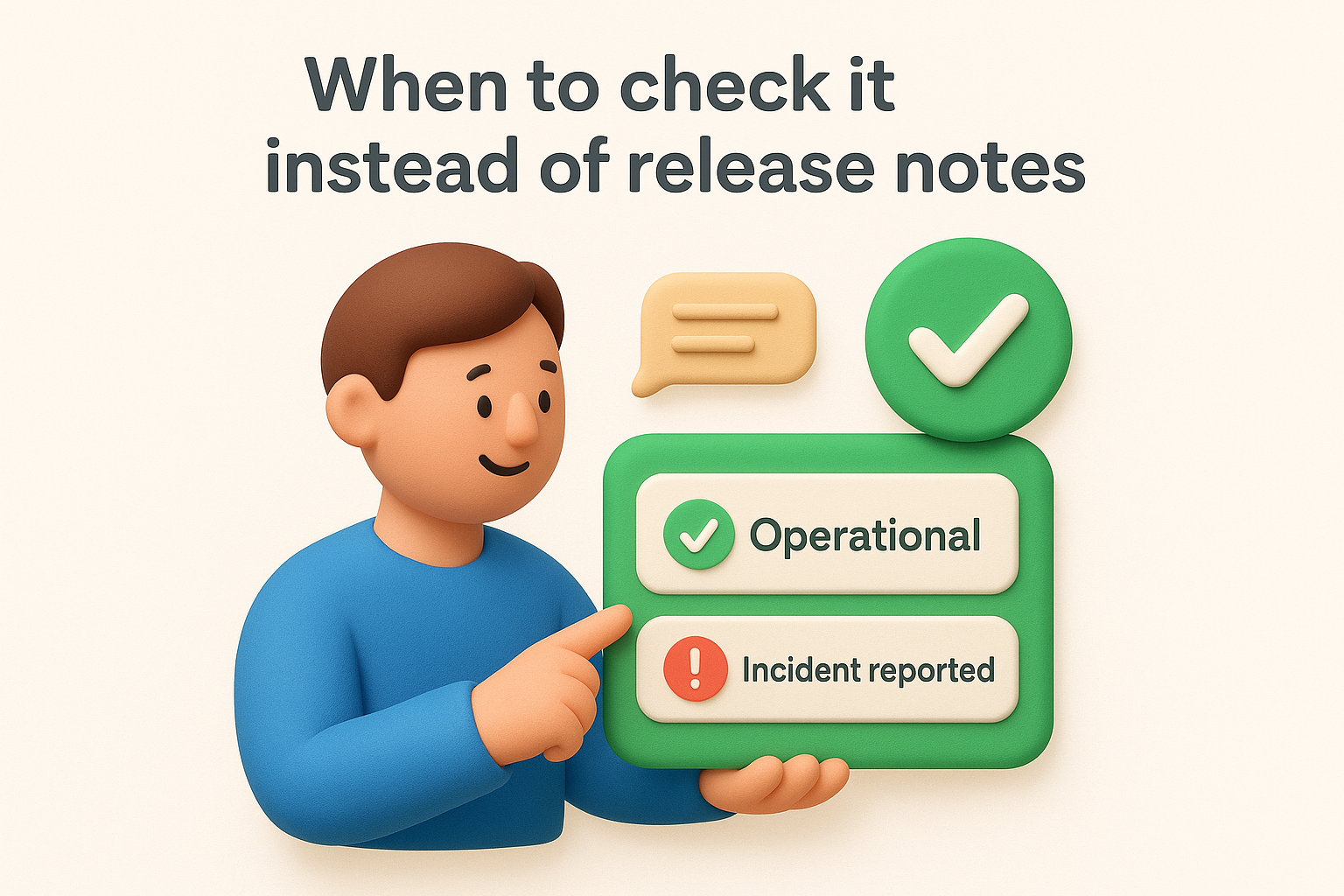
The status page tracks the operational health of Slack's core services, including messaging, file uploads, notifications, calls, and third-party app integrations. Each service component displays a current status indicator ranging from operational to degraded performance or partial outage. Slack also posts incident history on this page, so you can review past disruptions and their resolution timelines without needing to search through support threads or community forums.
If Slack stops working or behaves unexpectedly, your first stop should be the status page rather than release notes. Release notes document intentional changes, but sudden notification failures, message delivery delays, or login errors are almost always service incidents unrelated to a recent update. Checking the status page first saves you from unnecessary troubleshooting steps or submitting a support ticket for a problem Slack already knows about and is actively addressing.
If the status page shows an active incident affecting a service your team depends on, share that link directly with your team rather than escalating internally.
Slack updates the status page throughout an active incident, posting timestamped entries that describe what's affected and what steps the team is taking. Monitoring those updates gives you a clearer timeline for when to expect normal service to resume, which helps you set accurate expectations for your users without guessing.
Slack sometimes marks an incident as resolved before all users experience full recovery, so don't assume your issue is fixed simply because the status page updates. Regional infrastructure differences can mean some users regain full service while others continue experiencing problems. If your issue persists after a resolution notice, check whether the incident post includes notes about partial recovery or ongoing monitoring before contacting support.
Several independent sites and services track Slack updates by aggregating or summarizing changes pulled from Slack's official pages. These third-party trackers can be useful for teams that want email alerts or RSS feeds tied to Slack's update cycle, since Slack doesn't offer a native subscription option for its slack release notes pages.
Third-party trackers typically pull from Slack's publicly available changelog and release notes pages and reformat that content for easier consumption. Some aggregate updates across all platforms into a single feed, while others focus on specific areas like the Developer Docs changelog or the Web API.
You'll often find these tools useful when you want push notifications rather than manually checking multiple Slack pages on a regular schedule. The convenience they offer is real, but that convenience depends entirely on whether the tracker is actively maintained and pulling data accurately.
Before you act on anything a third-party tracker surfaces, confirm the information against Slack's official documentation. Trackers that rely on scraping can misformat version numbers, truncate descriptions, or lag behind by hours when Slack publishes a rapid patch.
Treat third-party trackers as a notification layer only, not as a substitute for reading the actual release notes.
If a tracker flags a significant change, navigate directly to the corresponding official Slack page to read the full entry before communicating anything to your team. Your workflow should place these tools at the front of your awareness, not at the end of your decision-making process.
Some trackers haven't updated their scraping logic after Slack redesigned its documentation pages, which means their feeds can show stale, duplicated, or missing entries without any obvious warning. Check the publication timestamps on any tracker you use to confirm it's pulling data accurately before you rely on it for anything time-sensitive.
A feed that stopped updating months ago provides false confidence that nothing has changed, which creates a bigger blind spot than simply checking the official pages on your own.
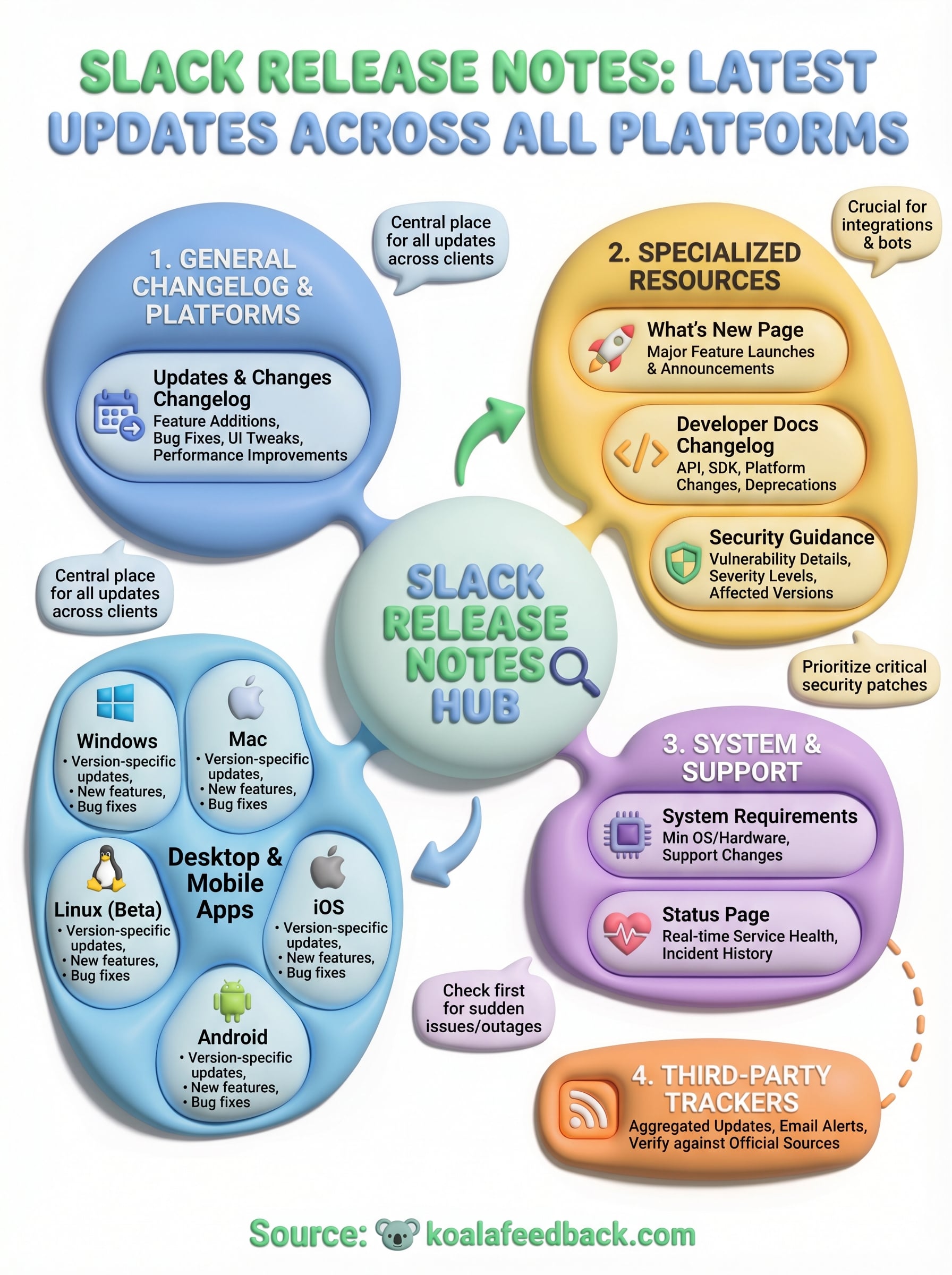
Tracking slack release notes across every platform takes more effort than it should, but each resource covered in this article serves a distinct purpose. For day-to-day update monitoring, start with the general changelog and the platform-specific pages for Windows, Mac, Linux, iOS, and Android. When something breaks unexpectedly, check the status page first before assuming a recent update caused the problem. Developers maintaining integrations need the Developer Docs changelog on their regular rotation, not just the client-facing notes.
The broader point here is that staying current on product changes requires a system, not a single source. Slack publishes updates across multiple pages because the product serves multiple audiences. Choosing the right page for your specific question saves you time and reduces the risk of acting on incomplete information.
If you want to build that same transparency and communication loop for your own product, start collecting and sharing feedback with Koala Feedback.

Start today and have your feedback portal up and running in minutes.