Linear has become a go-to tool for product and engineering teams who want to manage projects without the bloat of traditional project management software. One of its most powerful features is the Linear roadmap, which gives teams a structured way to plan, prioritize, and track work across multiple projects and timelines.
But setting up a roadmap in Linear isn't always intuitive. You need to understand how projects, cycles, and initiatives connect, and how to configure views that actually help your team stay aligned. This guide walks you through the entire process, from creating your first roadmap to tracking progress and keeping stakeholders in the loop.
We'll also cover where Linear's roadmap falls short, particularly when it comes to collecting and acting on user feedback. That's where tools like Koala Feedback come in, helping you feed real user input into your planning process so your roadmap reflects what your users actually want, not just internal assumptions. Let's get into it.
A Linear roadmap is built around three core layers: initiatives, projects, and issues. Initiatives represent your high-level strategic goals, like launching a new feature set or overhauling your onboarding flow. Projects sit beneath initiatives and group the actual work into manageable chunks. Issues are the individual tasks that make up each project. Together, these layers give you a clear line of sight from big-picture strategy down to day-to-day execution.
Linear's roadmap view pulls together several elements that help you manage work across time and teams. Understanding each component before you start building saves you significant rework later.
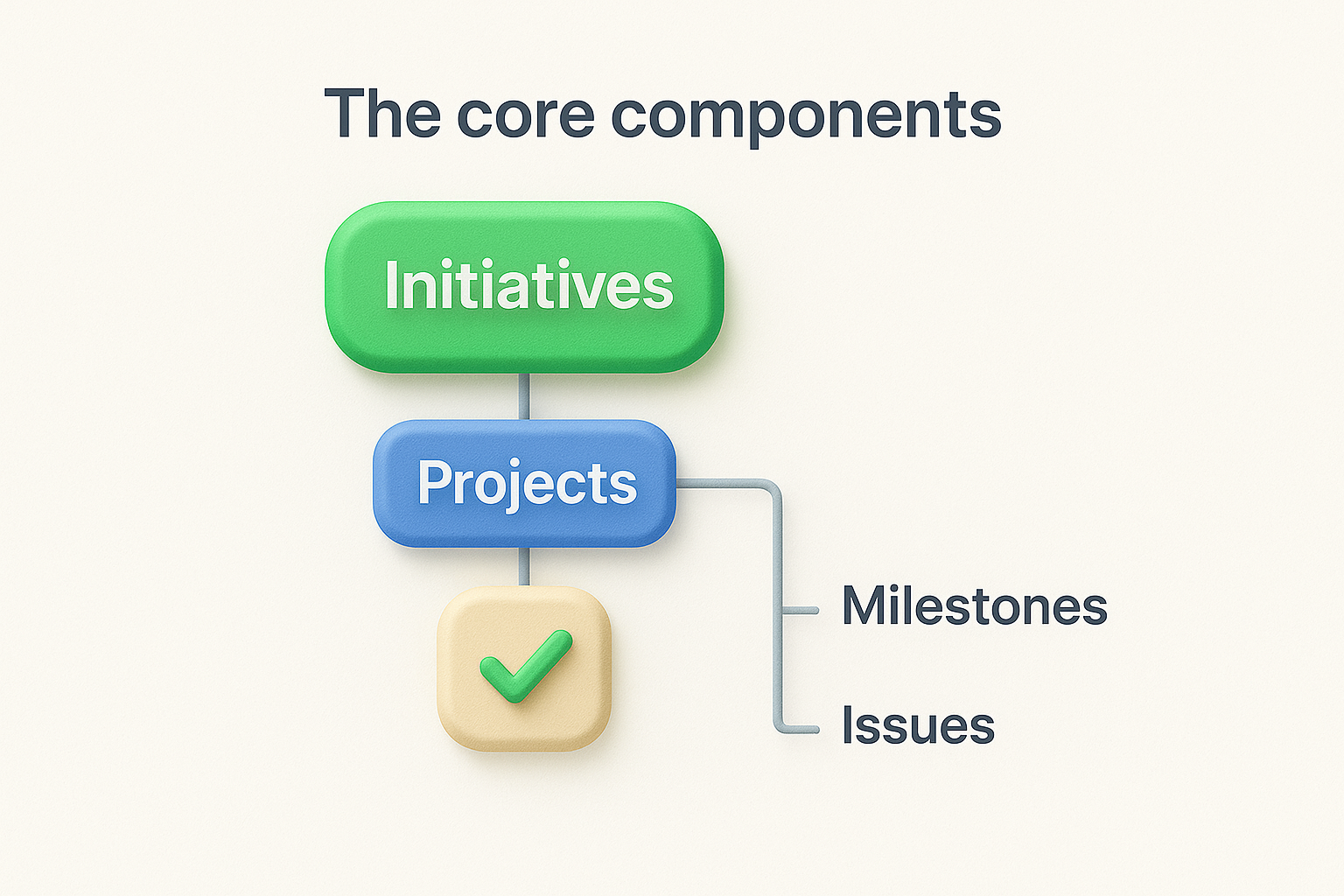
Here's what makes up a complete Linear roadmap:
The timeline view is where your roadmap becomes a real planning tool rather than just a task list. Use it to catch scheduling conflicts before they turn into missed deadlines.
Linear's roadmap works best for engineering and product teams that need to coordinate work across multiple projects over a defined planning period, such as a quarter. If your team runs cycles (Linear's version of sprints), the roadmap gives those cycles strategic context by connecting them to larger initiatives.
You should use the Linear roadmap when you need to communicate delivery timelines to internal stakeholders, align multiple teams on shared goals, or track whether projects are on schedule. It gives leadership a high-level view while letting individual contributors stay focused on their specific issues.
Where it falls short is customer-facing communication. Linear doesn't give you a clean way to share your product direction with actual users, collect their input, or show them what's planned versus what's shipped. It also doesn't help you prioritize based on user demand since there's no built-in mechanism for gathering votes or feature requests from the people using your product. For that kind of external visibility and feedback loop, you need a dedicated tool designed with your users in mind.
Before you build anything in your linear roadmap, you need to lay the foundation with initiatives and projects. Initiatives are your top-level strategic goals; projects hold the actual work. Setting these up in the right order means your roadmap reflects real planning rather than a disconnected list of tasks.
Initiatives live at the top of Linear's hierarchy and give your roadmap strategic context. To create one, navigate to your workspace, select Initiatives from the left sidebar, and click "New Initiative." Give it a name that reflects a business goal, like "Q2 Onboarding Overhaul" or "Mobile App Launch," and set a timeframe that matches your planning cycle.
Keep initiative names outcome-focused rather than output-focused. "Reduce churn by improving onboarding" is more useful than "Build onboarding screens."
Each initiative should cover 4 to 12 weeks of work at most. If the scope stretches beyond that, split it into two separate initiatives so your roadmap stays manageable and your team stays focused on near-term delivery.
With your initiatives in place, create projects that sit beneath them. In Linear, go to Projects in the sidebar and click "New Project." Set a start date, a target date, an owner, and link the project to the relevant initiative using the "Initiative" field on the project detail page.
Here's a simple template for structuring each project before you start adding issues:
| Field | Example |
|---|---|
| Project name | User onboarding redesign |
| Owner | Product Manager |
| Start date | 2026-03-15 |
| Target date | 2026-04-30 |
| Initiative | Q2 Onboarding Overhaul |
| Status | Planned |
Fill out every field before moving forward. Skipping the target date or owner is the most common reason roadmaps lose accountability early in the planning cycle.
With your initiatives and projects configured, the next step is filling your linear roadmap with the actual work. Issues are the building blocks that drive project progress percentages and give every team member a clear picture of what needs to happen before a project closes.
Open any project in Linear and click "Add Issue" from the project detail page. Each issue should represent a single, deliverable unit of work that one person can own. Set a priority level, assign an owner, and link the issue to a milestone if you set one up in the previous step. If an issue will take more than a few days to complete, break it into sub-issues so your progress tracking stays accurate and reflects real completion.
Keep issue titles action-oriented. "Write API documentation for authentication endpoints" is more useful than "API docs."
Use this structure when creating each issue:
| Field | Example |
|---|---|
| Title | Design new onboarding screen flow |
| Owner | Frontend Engineer |
| Priority | High |
| Milestone | Design phase complete |
| Estimate | 3 points |
Before you load a project with dozens of issues, take a few minutes to define the scope explicitly. Write a short description directly in the Linear project detail page that covers what is included and, equally important, what is not included. This prevents scope creep and keeps your delivery dates from slipping before the project even starts.
Scope definition does not need to be lengthy. Two to three sentences describing the goal, the key boundaries, and any known constraints will protect your team from confusion when new requests arrive mid-project and someone argues they belong in the current workload.
Once your projects and issues are in place, the timeline view in Linear becomes your primary tool for spotting delivery risks before they turn into missed dates. Navigate to Roadmap in the left sidebar and switch to the timeline view to see all your projects displayed on a calendar grid. Each project bar spans from its start date to its target date, giving you an immediate visual picture of how work is distributed across your planning period.
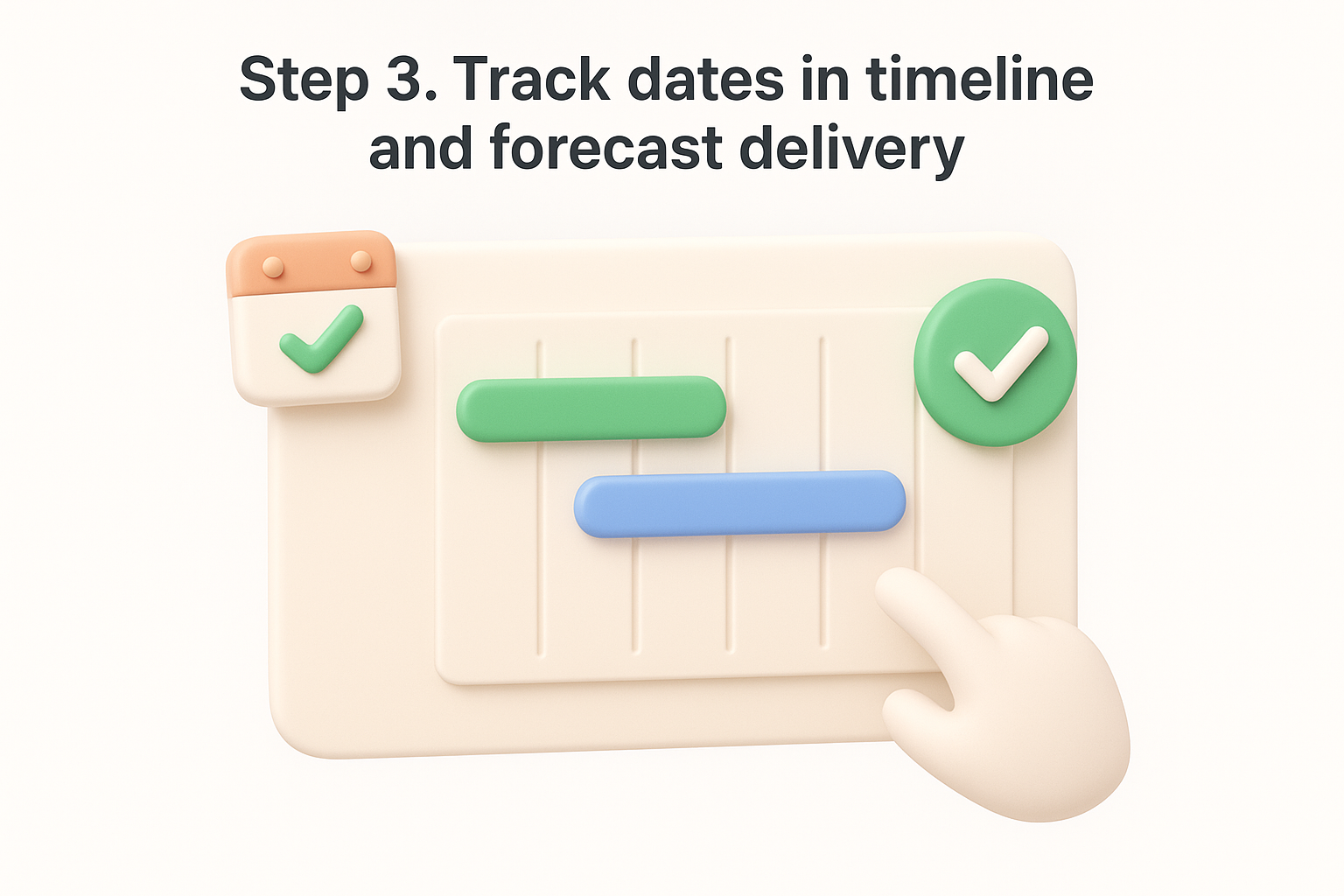
The timeline view in your linear roadmap lets you drag project bars directly to shift start or target dates without leaving the screen. If two projects overlap heavily and share key contributors, that overlap is a signal to stagger the timelines or reassign scope before the conflict becomes a real problem.
Use this checklist each time you review the timeline:
Linear calculates project completion percentages automatically based on the ratio of completed issues to total issues. You can use this alongside the target date to forecast whether a project will finish on time. If a project is 30% complete but only 10% of the time budget remains, that gap signals a delivery risk you need to address now.
Review progress percentages every week, not just before sprint reviews. Catching a 20-point gap early gives you time to descope, not just apologize.
When you spot a risk, update the target date in the project detail panel and leave a written note explaining why the date changed. This keeps your team informed and your timeline honest.
Tracking progress privately inside your linear roadmap only helps your immediate team. Reporting that progress to the right people at the right time is what keeps projects moving without constant status meetings. Linear gives you a few direct ways to share updates, and using them consistently builds trust with both your team and leadership.
Linear has a built-in project update feature that lets you post written status reports directly on the project detail page. Open your project, click "Add Update," and write a short summary covering what was completed, what's in progress, and any blockers that need attention. Posting an update once a week is enough for most teams.
A weekly update that takes three minutes to write saves a 30-minute status meeting. Use it.
Use this template each time you post a project update:
| Field | What to include |
|---|---|
| Status | On track / At risk / Blocked |
| Completed this week | 2-3 bullet points of closed issues |
| In progress | Current active work |
| Blockers | Any dependencies or risks |
| Next milestone | Date and name |
Linear lets you generate shareable links for roadmap views that give external stakeholders read-only access. From the roadmap screen, click the share icon in the top right corner and copy the link. This lets leadership or cross-functional partners check progress without needing a full Linear account or direct access to your workspace.
Before sharing any external link, confirm that sensitive project names or internal strategy details are not visible in the view. You can adjust which projects appear in a roadmap view by filtering by team or initiative before generating the link.
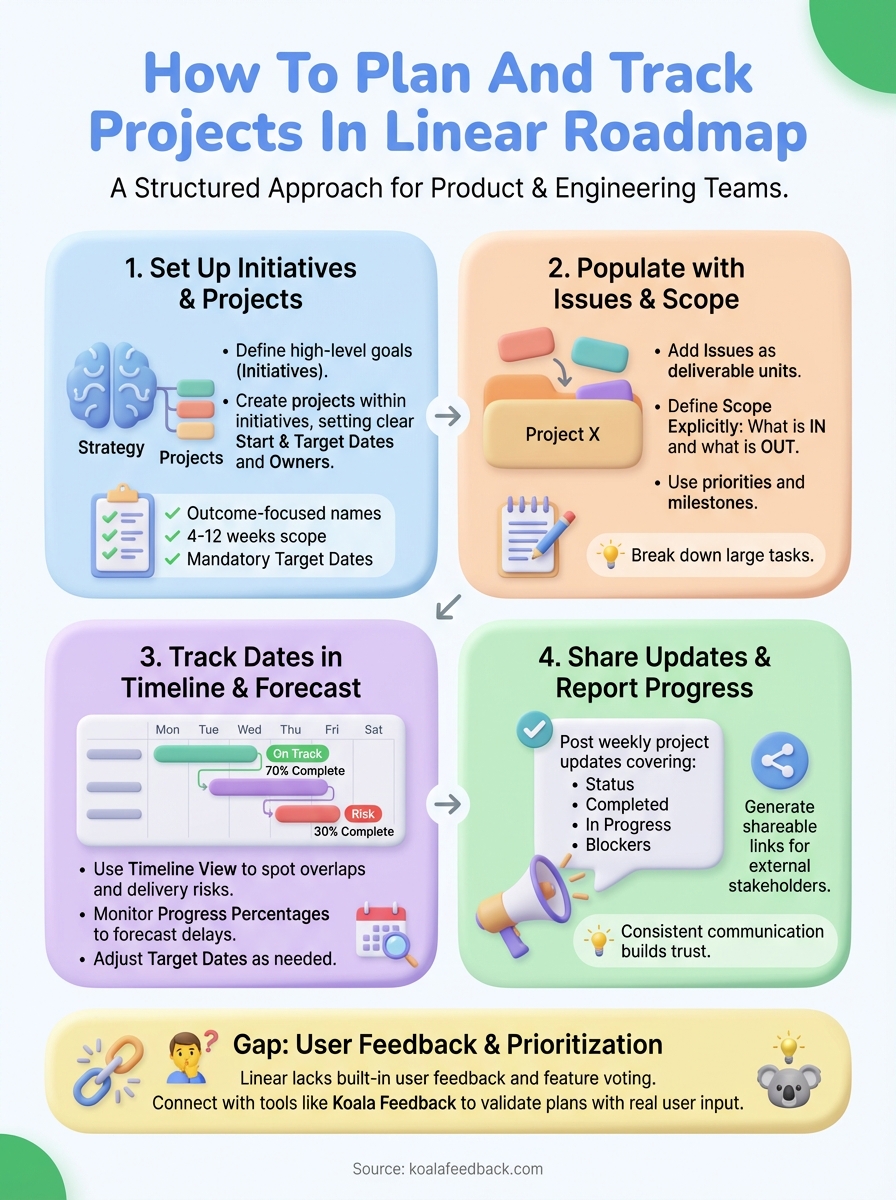
You now have everything you need to build a functional linear roadmap in Linear, from setting up initiatives and projects to tracking dates and sharing progress with stakeholders. The process works well for internal planning and engineering coordination, but it leaves a clear gap when it comes to your actual users.
Linear doesn't tell you what your users want built next. Closing that gap requires adding a dedicated feedback layer to your workflow. Koala Feedback gives your users a place to submit ideas, vote on feature requests, and see your public roadmap, so the projects you plan in Linear reflect real demand rather than internal assumptions. Start by listing your current initiative themes and use them to create your first feedback board in Koala Feedback. That way, your next quarterly planning cycle starts with actual user data instead of guesswork, and the roadmap you ship reflects what users care about most.

Start today and have your feedback portal up and running in minutes.