Collecting user feedback directly on your website gives you real-time insights into what's working and what's frustrating your visitors. The Hotjar feedback widget is one popular tool that lets you capture this input through customizable on-page surveys and reaction buttons, helping teams identify usability issues and gather suggestions without disrupting the user experience.
Whether you're setting up your first feedback widget or looking to optimize an existing one, getting the configuration right matters. A poorly placed or overly intrusive widget can annoy users, while a well-designed one encourages meaningful responses that actually inform product decisions.
This guide walks you through the complete process of setting up Hotjar's feedback widget, customizing it to match your brand, and applying best practices that maximize response rates. At Koala Feedback, we help teams collect, prioritize, and act on user input, so we understand what separates effective feedback collection from noise. Use this article to evaluate whether Hotjar's widget fits your workflow, and how to get the most out of it if you decide to implement it.
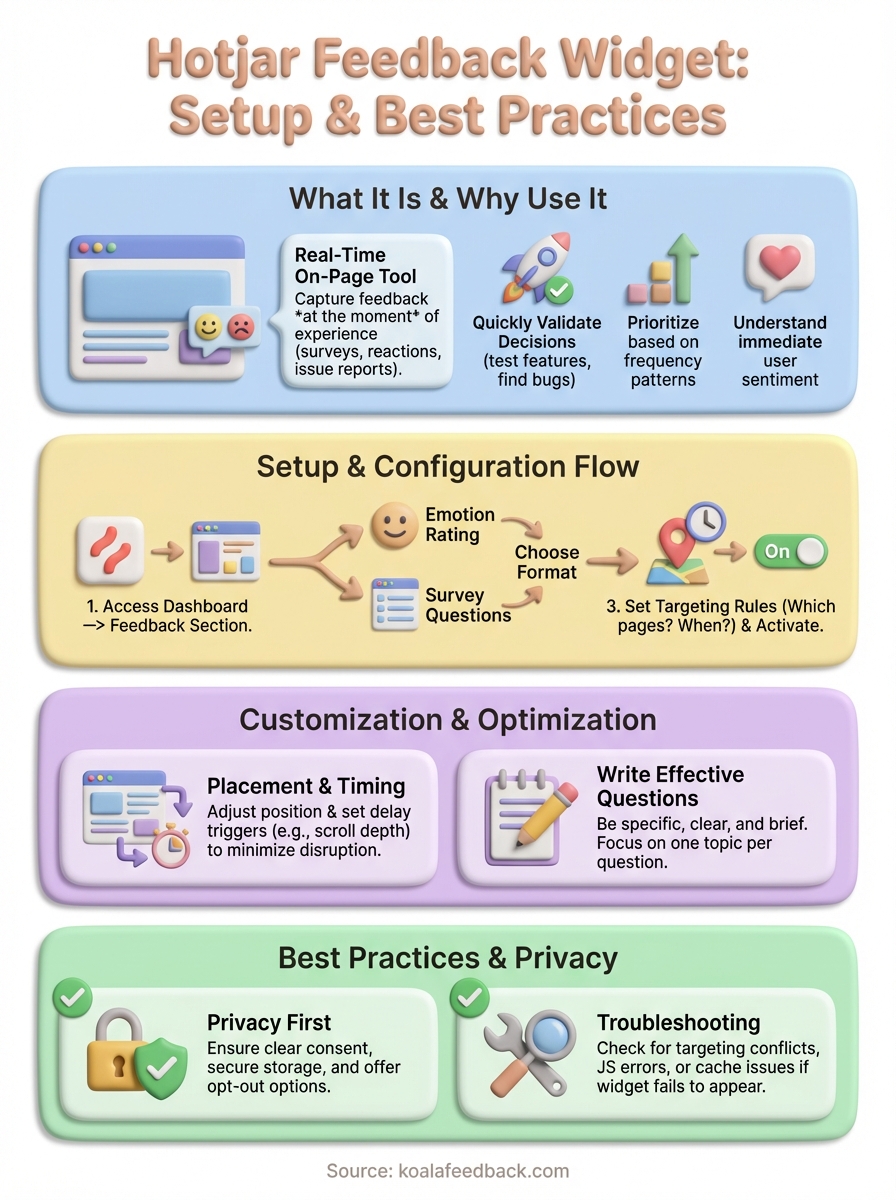
The Hotjar feedback widget is an on-page tool that lets you collect user opinions and reactions without requiring visitors to leave your site. It appears as a visual element on your web pages, typically as a button on the side of the screen or an embedded form within your content. When users click it, they can submit feedback through surveys, rate their experience, or report specific issues they encountered during their visit.
Capturing feedback at the moment of experience produces more accurate and actionable insights than asking users to recall their experience later.
You can configure the widget to appear in multiple formats depending on what information you need. The emotion rating option displays simple emoji-style buttons that let visitors quickly indicate whether they're satisfied or frustrated. Survey widgets present specific questions you've designed, allowing for longer written responses or multiple-choice answers. Both formats give you flexibility in how you collect input based on your research goals.
The widget integrates with your existing Hotjar installation, meaning you don't need separate code implementations for each feedback tool. You control when and where it appears using targeting rules that specify which pages trigger the widget, which user segments see it, and what device types display it. This targeting ensures you're asking the right questions to the right people at moments when they're most likely to provide useful responses. Your customization options extend to colors, button text, and positioning, letting you match the widget's appearance to your brand while maintaining a natural look that doesn't disrupt the user experience.
Product teams rely on the Hotjar feedback widget because it captures user sentiment at the exact moment visitors interact with their site. Instead of waiting for users to contact support or fill out lengthy surveys sent via email, you get immediate reactions to specific features, pages, or design changes. This real-time approach reduces recall bias and gives you context about what users were trying to accomplish when they encountered problems or had suggestions.
You can deploy the widget to test new features before committing to full development cycles. When you launch a beta feature or redesign a key page, the feedback button lets users report bugs, request improvements, or confirm that your changes solved their pain points. This rapid feedback loop helps you iterate faster and catch usability issues that internal testing might miss.
Collecting targeted feedback on specific pages gives you directional insight without the overhead of scheduling user interviews or setting up formal research sessions.
The widget surfaces which problems affect the most users by showing frequency patterns in submitted feedback. When multiple visitors report the same frustration or request similar functionality, you have quantifiable evidence that an issue deserves attention. This data helps you defend prioritization decisions to stakeholders who might otherwise rely on assumptions about what users need.
Setting up a Hotjar feedback widget starts with accessing your Hotjar dashboard and navigating to the feedback section. The process takes less than ten minutes if you already have the base tracking code installed on your site. You'll configure the widget's appearance, choose which pages trigger it, and decide what questions you want to ask visitors.
Log into your Hotjar account and select "Feedback" from the main navigation menu. Click the option to create a new feedback widget, which opens the configuration interface where you'll define all settings. Your Hotjar tracking code must be active on your website before the widget will display, so verify that installation first if you're setting up Hotjar for the first time.
Choose whether you want an emotion-based widget with reaction buttons or a survey-style widget with custom questions. Name your widget something descriptive that identifies its purpose, like "Homepage Satisfaction" or "Feature Feedback," which helps you organize multiple widgets later. Set your targeting rules to control which URLs display the widget and whether it appears immediately or after a time delay. Save your configuration and the widget becomes active within minutes, appearing on your specified pages according to the rules you defined.

Testing the widget yourself before announcing it to users helps you catch configuration errors and ensures questions make sense in context.
Customizing your Hotjar feedback widget ensures it appears at the right moment without disrupting the user experience. You control the exact position on screen, the trigger conditions that activate it, and the specific questions that prompt visitors to respond. These settings directly impact your response rates and the quality of feedback you receive, so adjusting them based on your goals matters more than using default configurations.
Navigate to the widget settings within your feedback configuration to change where the button appears on your pages. You can position it on the left or right edge of the screen, adjust its vertical placement, and modify the button text that invites clicks. Set delay triggers that wait until users scroll to specific page sections or spend a certain amount of time on the page before displaying the widget, which reduces interruption for visitors who just arrived.
Triggering the widget after users scroll 50% down a page captures feedback from people who actually engaged with your content rather than those who bounced immediately.
Craft questions that address specific aspects of the user experience rather than asking generic "How can we improve?" prompts. Focus each question on a single topic, use clear language without technical terms, and keep text brief so visitors can respond quickly. Your questions should guide users toward actionable feedback about features, navigation, content clarity, or task completion rather than collecting vague satisfaction ratings.
Running an effective Hotjar feedback widget requires balancing user experience with data collection goals. You need to respect visitor privacy, avoid survey fatigue, and troubleshoot technical issues that prevent the widget from displaying correctly. Most problems stem from improper configuration or conflicts with other site elements rather than actual bugs in the feedback tool.
Your feedback widget collects personal data when users submit responses, which means you need clear consent mechanisms and data handling policies. Display a brief privacy notice near the submission button that explains how you'll use responses, and allow users to opt out of tracking if your jurisdiction requires it. Store feedback securely and delete submissions after they've served their purpose, particularly if responses contain sensitive information about user behavior or frustrations.
The widget fails to appear when targeting rules conflict or JavaScript errors block the script from loading. Check your browser console for errors if the feedback button doesn't display on specified pages, and verify that your targeting conditions don't accidentally exclude all visitors. Clear your site cache and test in incognito mode to rule out local browser issues that might hide the widget.
Testing across different browsers and devices before launching a widget campaign prevents response gaps from technical compatibility problems.
Now that you understand how to set up and optimize the Hotjar feedback widget, your next priority is collecting feedback consistently and turning those insights into action. The widget gives you raw user input, but you still need a system to organize, prioritize, and track what you do with that feedback. Unorganized feedback sits in spreadsheets or gets lost in email threads, which defeats the purpose of collecting it in the first place.
Consider how you'll categorize incoming suggestions, identify patterns across multiple submissions, and communicate progress back to the users who took time to respond. Koala Feedback helps you centralize all user feedback in one place, automatically deduplicate similar requests, and share a public roadmap that shows users you're listening. Managing feedback effectively turns casual suggestions into a prioritized product strategy that serves your actual users rather than internal assumptions.

Start today and have your feedback portal up and running in minutes.