Slack's platform goes far beyond chat. With the right API calls, you can push notifications, pull conversation data, automate workflows, and connect virtually any tool your team already uses. But getting started means spending time with the Slack API documentation, and honestly, it's dense. Between Web API methods, event subscriptions, OAuth scopes, and Socket Mode, there's a lot to sort through before you write your first line of working code.
This guide breaks down the core sections of Slack's API docs so you can find what you need faster. We'll cover authentication flows, the Web API, Events API, and practical examples that product and engineering teams actually use, like routing user feedback from Slack directly into tools built for it.
At Koala Feedback, we help product teams collect, prioritize, and act on user input. Many of our users pipe feedback straight from Slack into their boards, which means understanding Slack's API is something we've worked through firsthand. Here's what we've learned.
If your team uses Slack, you already have a direct line into your users. The Slack API documentation turns that line into something fully programmable. Without a solid grasp of the docs, you're stuck with Slack's default features. With them, you can build custom bots, automate message routing, and pull structured data from conversations without any manual effort.
The difference between a basic Slack integration and a genuinely useful one almost always comes down to how well you've read the API docs.
Most teams start by clicking through Slack's UI to set up simple notifications. That gets you basic incoming webhooks, but it won't get you custom event handling, user-specific workflows, or anything that needs to read and write data dynamically. Once you work through the actual documentation, the scope of what's possible grows considerably. You can build things like:
Third-party tutorials go out of date quickly. Slack's API has changed its authentication model, deprecated older token types, and shifted some features between API surfaces over the years. Reading the official docs means you're working from the current source of truth, not a guide written two years ago that skips the newer patterns entirely.
Your integration also depends on details that tutorials routinely skip. The complete list of available scopes and rate limits lives in the official docs, and both are the details most likely to break something in production if you overlook them early in the build.
The Slack API documentation splits its content into distinct product areas rather than presenting everything as one long reference file. Navigating it well means understanding how Slack has grouped its developer resources so you know exactly where to look when you run into a specific problem during your build.
Knowing which section to open first cuts your setup time considerably.
Slack organizes its docs around several core surfaces. The Web API covers direct HTTP methods for reading and writing data in your workspace. The Events API handles subscriptions to real-time activity happening inside Slack. You'll also find dedicated sections for Block Kit (the UI framework for building messages and modals), Workflows, and the app manifest format for configuring apps programmatically.
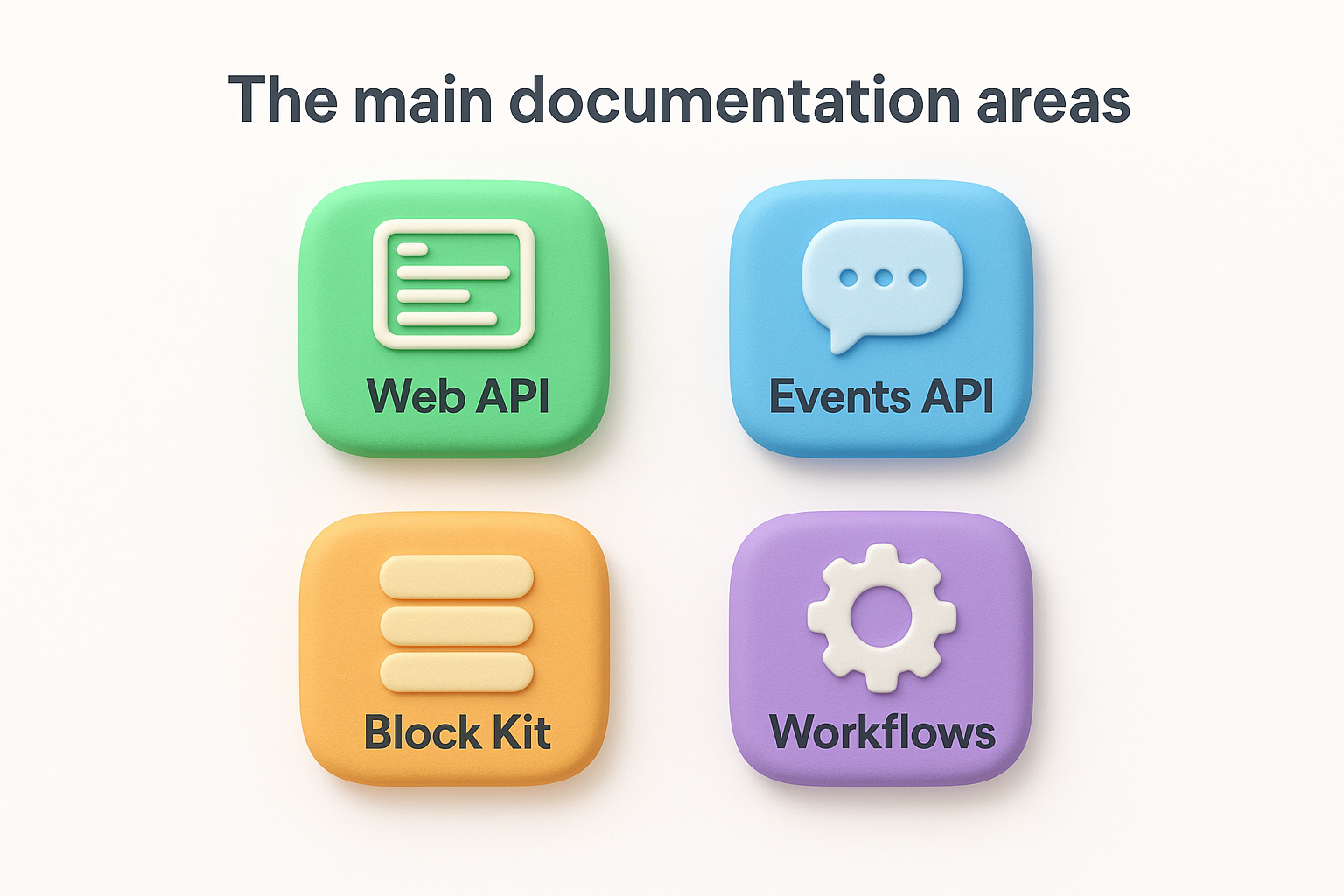
Conceptual guides and the API reference serve different purposes within the docs. The guides walk you through setup flows and explain how different features connect. The method reference pages list every available call, event type, and payload field with full parameter details and return values. When debugging a specific call, go straight to the reference. When understanding how something fits together conceptually, start with the guides.
The Web API is the core HTTP interface in the slack api documentation that lets you take direct action in a workspace. Every call follows the same pattern: send a POST or GET request to a specific method endpoint, pass your bot token for authentication, and handle the JSON response. It's straightforward once you've made a few calls.
A common starting point is chat.postMessage, which sends a message to any channel your bot has access to. You need the channel ID (not the channel name) and your OAuth token in the Authorization header. The response tells you whether the call succeeded and returns the timestamp of the posted message, which you'll use if you need to update or delete it later.
Getting the channel ID right is the single most common source of errors in early Slack integrations.
Product teams most often use a small set of methods repeatedly rather than spanning the full method library. Here are the ones that come up most:
chat.postMessage: Send messages to channels or usersconversations.history: Pull recent messages from a channelusers.info: Retrieve profile data for a specific userreactions.add: Add emoji reactions to messages programmaticallyThe Events API lets your app react to things happening inside Slack rather than constantly polling for updates. Instead of checking whether a message was posted, your app receives a real-time payload the moment the event occurs. This is the model most production integrations rely on.
Reacting to events rather than polling is what separates a scalable Slack app from one that breaks under load.
When you subscribe to an event type in the slack api documentation, Slack sends an HTTP POST to your endpoint whenever that event fires. You specify which event types you want, like message.channels or app_mention, in your app configuration, and your server processes the JSON payload. Each payload includes a consistent structure with an event type field, user ID, and timestamp.
Socket Mode replaces the public URL requirement with a persistent WebSocket connection, which makes local development significantly easier. Your app connects outbound to Slack rather than waiting for inbound HTTP requests. This means you can test event handling and interactive components like buttons and modals on your local machine without exposing a public endpoint first.
The slack api documentation covers authentication in depth because your token choice shapes every API call you make. Your app authenticates using OAuth 2.0, and the token Slack returns determines exactly what your app can read or write inside a workspace. Store tokens in environment variables, never in your source code or version control.
A leaked token gives anyone full access to every permission your app was granted, so treat it like a password.
Slack issues two primary token types depending on how your app needs to operate. Bot tokens represent your app and work for the vast majority of integrations. User tokens act on behalf of a specific person and are only necessary when your integration requires personal-level access.
Scopes define the exact permissions your token carries, and you request them during the OAuth setup flow. Slack shows your requested scopes to workspace admins at install time, so a bloated list creates friction and distrust.
Request only the minimum scopes your app genuinely needs. Trimming unnecessary permissions reduces your attack surface and makes your app easier for admins to approve.
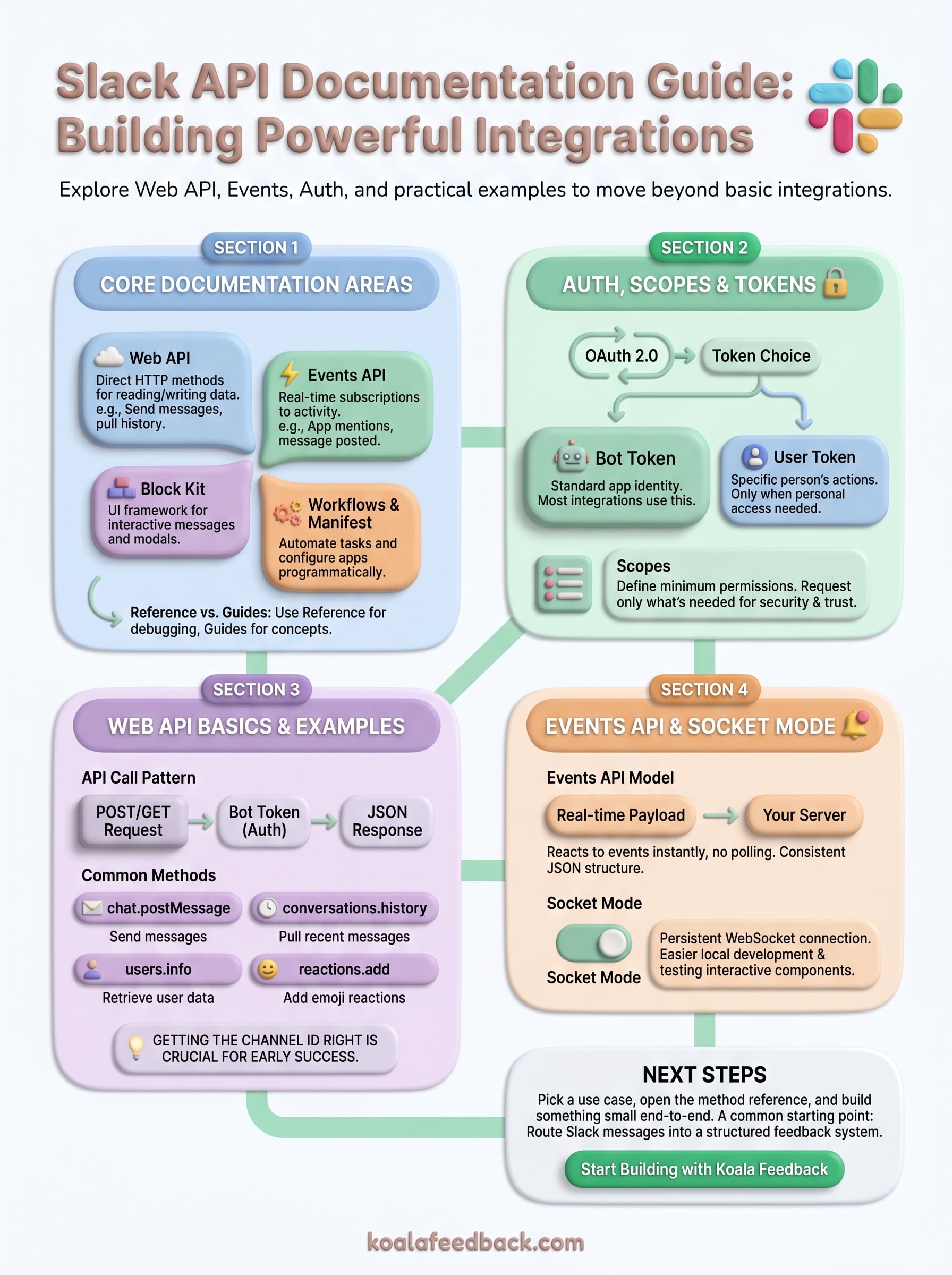
You now have a working map of the slack api documentation: where authentication lives, how the Web API and Events API differ, when to use Socket Mode, and how scopes shape what your integration can actually do. The next step is to pick one specific use case, open the relevant method reference, and build something small that works end to end before expanding it.
One of the most common starting points for product teams is routing Slack messages into a structured feedback system. Instead of letting feature requests and bug reports get buried in channel history, you can capture them automatically and push them somewhere they can be prioritized and acted on. If you want a dedicated place to collect, organize, and share that feedback with your team, start building your feedback workflow with Koala Feedback and connect it to the Slack integration you just learned how to build.

Start today and have your feedback portal up and running in minutes.