If your team runs on Gmail, Google Drive, or Google Docs, you've probably installed at least one add-on without thinking much about where it came from. That place is the Google Workspace Marketplace, Google's official hub for discovering and installing third-party apps that plug directly into your Workspace tools.
For product managers and SaaS teams, the Marketplace matters on two levels. First, it's where you find apps that streamline your own workflows, from project management to, yes, collecting user feedback with tools like Koala Feedback. Second, if you build software, it's a distribution channel worth understanding because your users are already there looking for solutions.
This article breaks down what the Google Workspace Marketplace actually is, how it works from both the user and developer side, and how to get the most out of it whether you're browsing for tools or considering listing your own.
The Google Workspace Marketplace is Google's official app store for tools that connect directly to Workspace products like Gmail, Drive, Docs, Sheets, and Calendar. Google hosts and vets every listing, so apps go through a review process before they reach you. Think of it as a curated catalog, not a wide-open directory.
The Marketplace exists to extend what Workspace can do without requiring your team to leave the apps they already work in.
Browse the Marketplace and you'll find categories ranging from project management and CRM tools to e-signature services, data connectors, and feedback collection platforms. Each listing includes screenshots, user reviews, permission details, and a description of what the app actually does. You can filter by category, compatibility, and rating to narrow your search quickly.
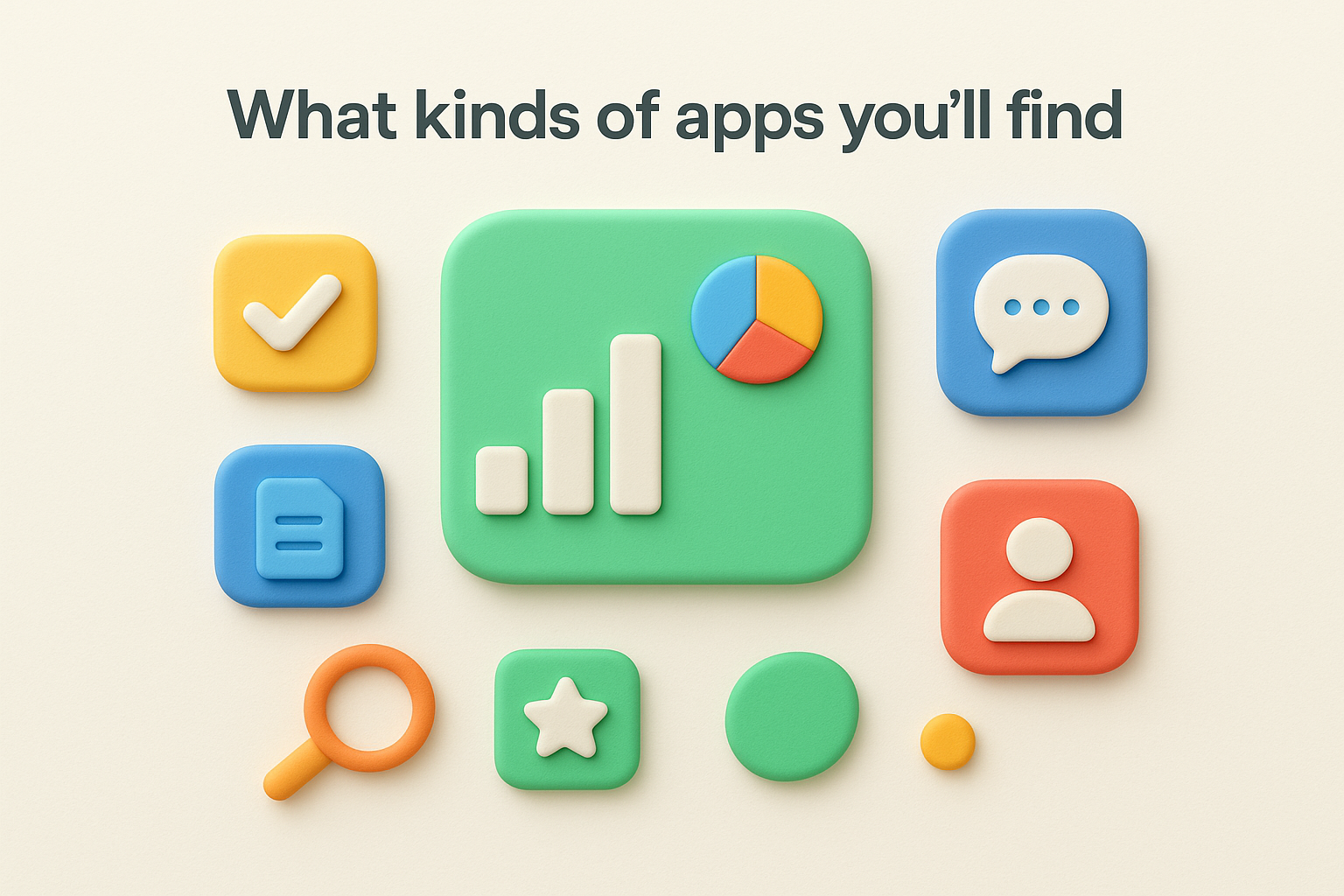
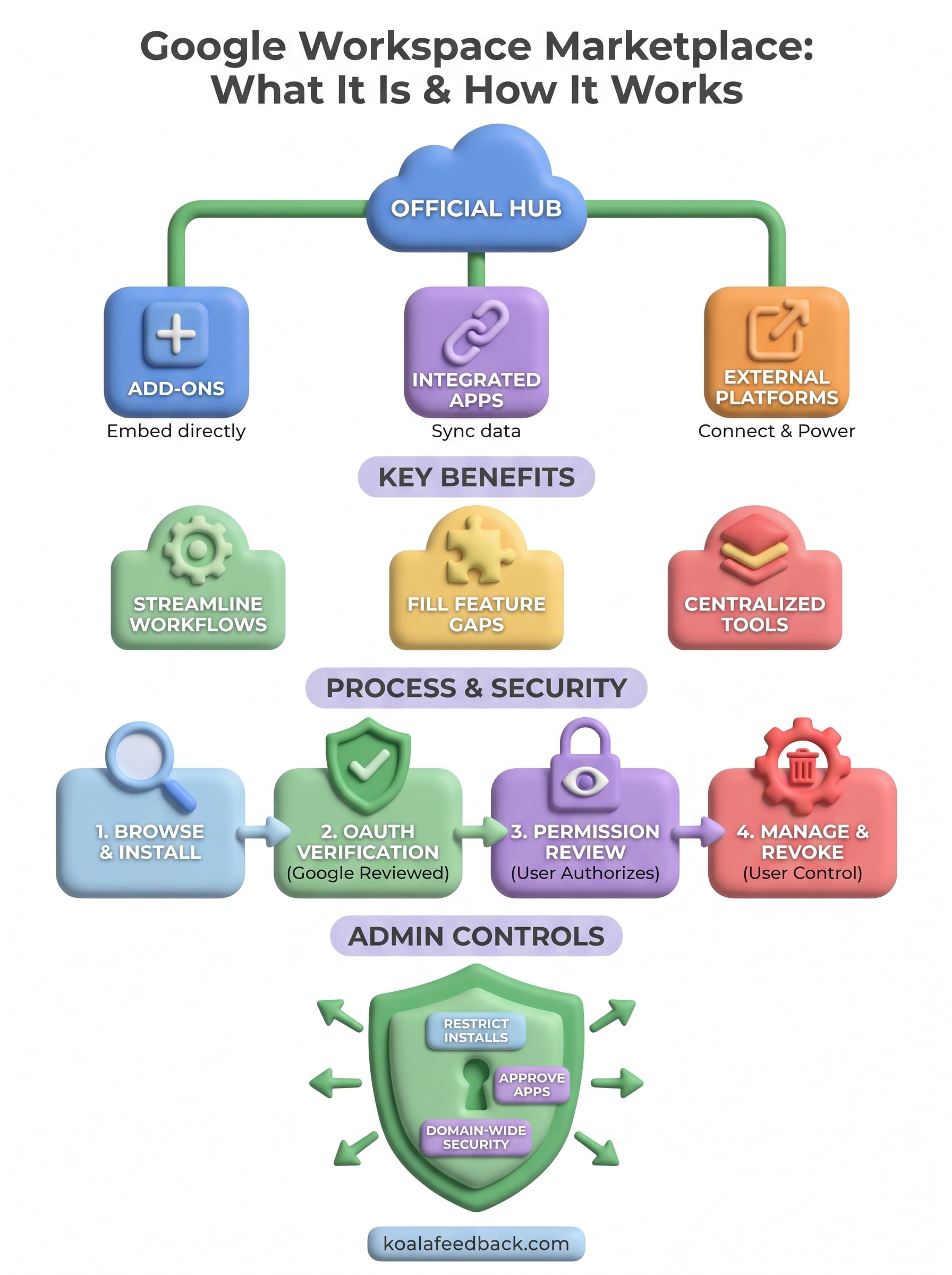
Apps on the Marketplace fall into two main types: add-ons, which embed directly inside a Workspace app like Docs or Sheets, and integrated apps, which connect Workspace data to an external platform. An add-on for Gmail, for example, might let you manage support tickets without leaving your inbox. An integrated app might sync Google Calendar events to a project management tool you run separately.
Before any app appears in the Google Workspace Marketplace, the developer must complete Google's OAuth application verification process, which checks that the app requests only the permissions it needs and handles user data responsibly. This step means every listed app meets a baseline security standard before you ever install it.
This verification also covers permission scopes, the specific data an app can access. When you install an app, Google shows you exactly what it can see or modify before you confirm. Reviewing those scopes takes seconds and is one of the simplest ways to protect your team's data.
Teams reach for the Google Workspace Marketplace for one simple reason: the tools they need are already built and ready to connect. Instead of switching between separate apps or copying data by hand, you can add functionality directly inside the Workspace products your team uses every day. That saves time and reduces the friction that slows down real work.
Keeping your tools inside one ecosystem means fewer logins, less context switching, and cleaner data.
Google Workspace covers a lot of ground, but no platform does everything. If you need a dedicated CRM, a more robust project tracker, or a way to collect and organize user feedback, the Marketplace is where you fill those gaps. You install what you actually need rather than overpaying for a bloated all-in-one platform.
Productivity drops when your team bounces between too many tabs. Marketplace apps embed directly into the tools your team already has open, so there's no separate login to remember or new interface to learn from scratch. Your workflow stays focused, and your data stays connected across the tools that matter most to your business.
Apps on the Google Workspace Marketplace connect to your tools through Google's APIs, which give approved apps controlled access to specific Workspace data. When you install an add-on, it appears as a sidebar or panel inside the host app, like Gmail or Google Docs, so you interact with it without opening a new tab. Integrated apps work slightly differently: they pull or push data between Workspace and an external platform in the background, keeping everything in sync automatically.
The API-based integration model means apps only touch the data you explicitly authorize during installation.
Add-ons live inside a Workspace interface, responding to what you do in real time. Open an email, and a Gmail add-on might pull up the sender's CRM record right in the sidebar. Connected apps, on the other hand, run outside Workspace but use your data to power features elsewhere. A feedback tool, for example, might let users submit ideas through a portal while storing submissions linked to your Google account. Both integration types use OAuth 2.0 authentication, which keeps your credentials secure and lets you revoke access at any time from your Google account security settings.
You can access the Google Workspace Marketplace directly at marketplace.google.com or from inside any Workspace app by clicking the add-ons icon. Both entry points open the same catalog, so start wherever it fits your current task best.
Finding apps from inside Gmail or Docs lets you install and test them without interrupting your workflow.
Use the search bar to find a specific tool by name, or browse by category if you're still exploring your options. Each listing gives you the information you need to make a quick decision before you commit:
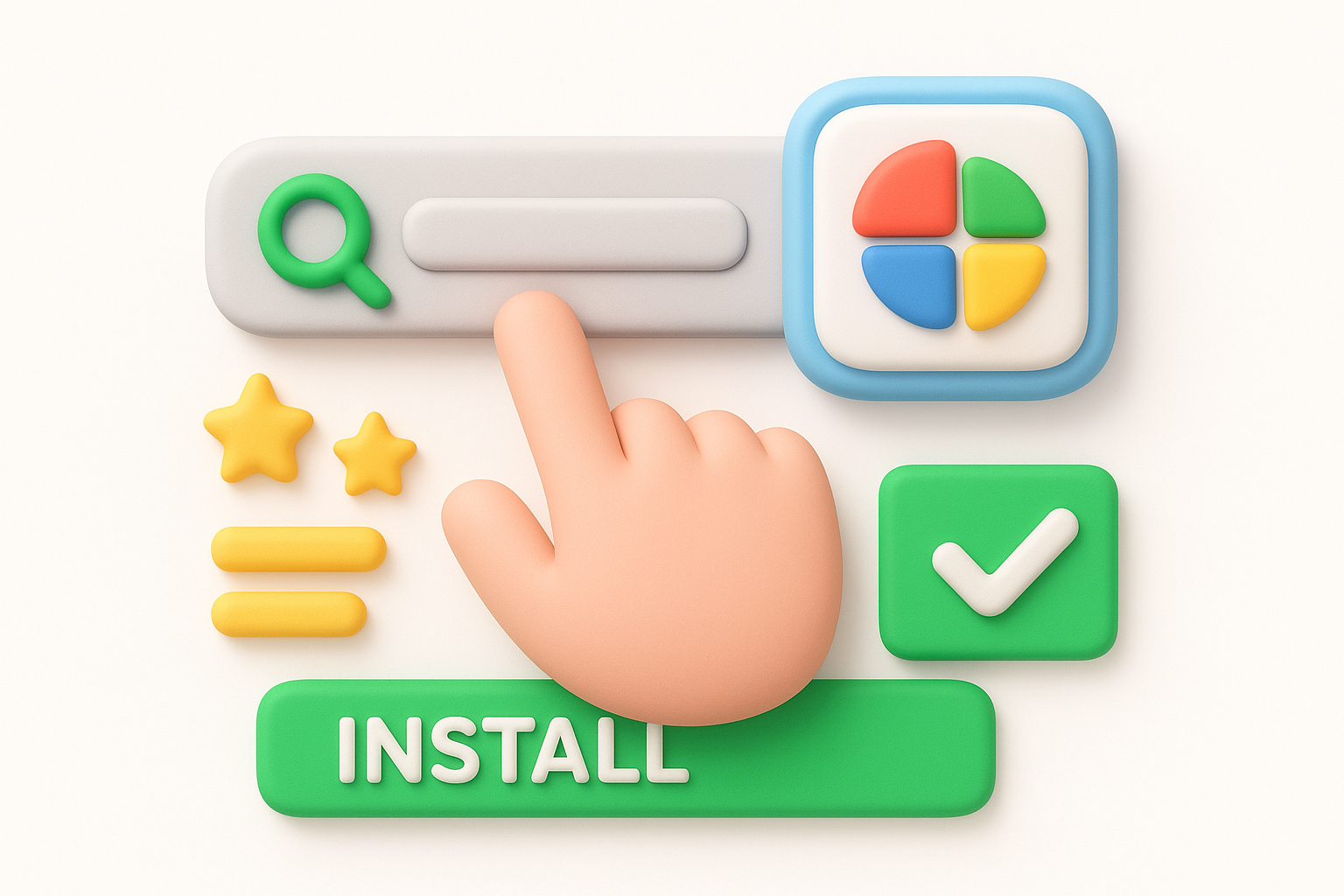
Once you click Install, Google walks you through a short authorization flow where you confirm exactly what the app can access. The whole process takes under a minute.
After installation, you manage all your apps from your Google account's connected apps page. From there, you can review what each app accesses, revoke permissions for any tool you no longer use, and remove any app instantly if your needs change. Workspace also notifies you when an app requests new permissions after an update, so you stay in control without checking manually.
Most apps on the Google Workspace Marketplace are free to install, but many follow a freemium model where core features cost nothing and advanced functionality sits behind a paid subscription. You'll see the pricing model listed on each app's page before you install, so there are no surprises after you commit.
Always review the pricing tier details on the app listing before rolling out a tool to your entire team.
Free apps cover a wide range of use cases and work well for individuals or small teams with straightforward needs. Paid apps typically unlock higher usage limits, priority support, or features built for larger organizations. Check the developer's pricing page directly to understand what each tier includes before you decide.
If your organization uses Google Workspace for Business or Enterprise, your admin has additional control through the Google Admin console. Admins can restrict which apps users are allowed to install, approve specific apps for the entire domain, or block installations entirely. This level of control matters when your team handles sensitive data, because it keeps unauthorized apps from accessing company information without review.
The Google Workspace Marketplace gives your team a straightforward way to extend what Workspace already does well. Whether you're adding a project tracker, a CRM, or a feedback tool, the install process is quick and the admin controls keep everything manageable. Start by auditing the tools your team already uses and check whether Marketplace versions exist that can keep your workflow inside one ecosystem rather than spread across separate platforms.
From there, focus on the gaps that cost your team the most time every week. If collecting and organizing user feedback is one of those gaps, a dedicated tool makes a real difference in how your team prioritizes work. Koala Feedback helps you centralize feature requests, let users vote on what matters most, and share your product roadmap so your team builds what users actually want. It's a direct way to turn scattered feedback into clear product decisions without adding friction to your existing workflow.

Start today and have your feedback portal up and running in minutes.