Every time Docker ships an update, the Docker Desktop release notes become required reading for developers, DevOps engineers, and platform teams who need to know exactly what changed. New features, breaking changes, security patches, deprecated tools, it all lives there. Missing a critical detail can mean broken builds, compatibility headaches, or skipped improvements that would have saved you hours.
At Koala Feedback, we help product teams collect user feedback, prioritize what to build, and share progress through public roadmaps, so we pay close attention to how major tools like Docker communicate their releases. Docker's release notes are a solid example of keeping users informed about what shipped and why.
This article breaks down six things you should know about Docker Desktop's release notes in 2026, from new features and security updates to where you can grab older versions. Whether you're upgrading today or evaluating compatibility, this list covers what matters most.
Reading Docker Desktop release notes once and closing the tab leaves your team exposed. You need a repeatable process that assigns ownership, documents impact, and communicates changes before a bad update sidelines anyone.
Without a named owner, release notes get skimmed by whoever happens to see the update notification first. Assign one person, typically a senior developer or DevOps lead, to review each Docker Desktop release and flag items that affect your stack. That person becomes the filter between Docker's changelog and your team's day-to-day workflow, so nothing critical slips through.
After each release, your designated owner should scan for breaking changes, deprecated features, and networking or filesystem updates that touch your setup. Convert those findings into a short checklist: What needs testing? Who needs to update first? What can safely wait? Keeping it short forces prioritization and prevents it from turning into a document nobody reads.
A three-item checklist acted on immediately beats a ten-item report filed away for later.
When developers hit issues after an update, those reports scatter across Slack threads, tickets, and emails fast. Centralizing that feedback in a platform like Koala Feedback means you can deduplicate reports, tie problems back to a specific Docker version, and spot patterns across your team. You can also log feature requests that stem from Docker changes, so nothing gets lost between release cycles.
Once you know which changes matter to your users or internal stakeholders, communicate progress clearly and consistently. A public roadmap lets you show what you are investigating, what is in progress, and what is resolved. This is especially useful when a Docker update causes a regression that affects multiple people. Instead of fielding the same question repeatedly, you publish one clear status update and point everyone to it, which saves time on both sides and builds trust with your users.
Docker's official documentation is the only reliable source for Docker Desktop release notes, and knowing how it is structured saves you time every time a new version drops. Skipping straight to the official source also protects you from outdated third-party summaries that leave out critical details.
The official release notes live at docs.docker.com, organized by version number with the newest release at the top. Bookmark that page and check it before you run any update, rather than relying on the in-app notification alone.
Each release entry follows a consistent structure: new features, bug fixes, known issues, and deprecation notices. Scan the headings first to identify which categories apply to your workflow, then read only those sections in full detail to cut your review time significantly.
Known issues are the most underread section in any release entry, and they are often the most relevant.
Use your browser's search function or the docs site search bar to find references to a specific component, such as WSL 2 or VirtioFS, across multiple version entries. This approach is faster than scrolling manually and helps you trace exactly when a bug was introduced or fixed.
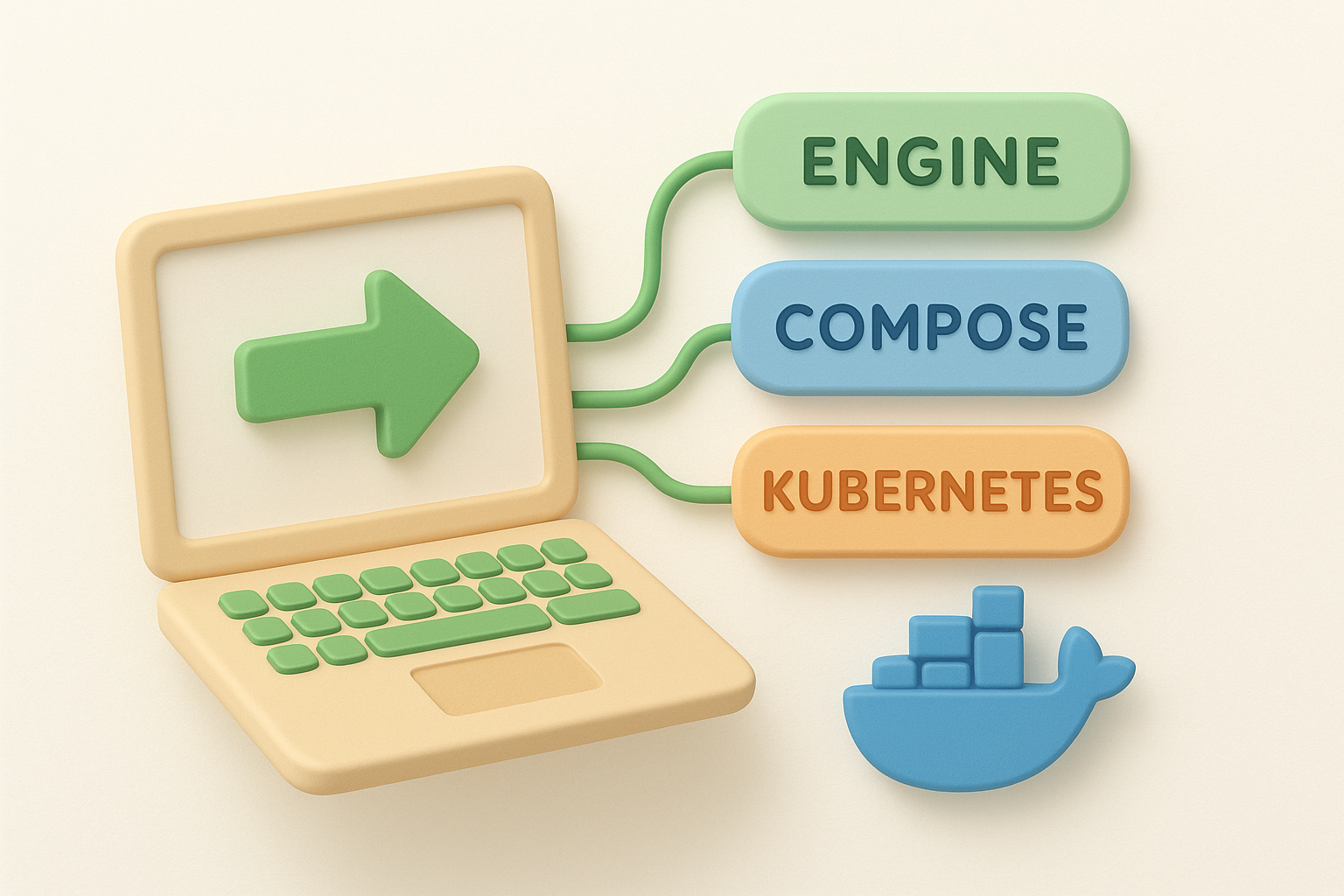
Docker Desktop ships a pinned version table inside each release entry that lists the exact builds of Docker Engine, Compose, and Kubernetes included. Check that table before you file a bug report or test a compatibility fix so you know precisely what is running on your machine.
Security fixes buried inside a feature-heavy release are easy to miss when you treat every update the same way. Build a habit of pulling security-related changes out of the Docker Desktop release notes into their own tracking log so nothing critical gets delayed.
Docker publishes security advisories separately from release notes on their official documentation site, and the two sources do not always overlap completely. Check both when a new version drops so you get the full picture.
Release notes flag fixes at the patch level, while CVE-specific advisories give you affected version ranges and remediation steps in one place. Cross-referencing both is the only reliable way to know your actual exposure.
Treat every unfamiliar fix in a release entry as a potential security item until you confirm otherwise.
Scan each release entry for keywords like "CVE," "vulnerability," or "privilege escalation" in the bug fix section. Docker labels these inline rather than grouping them under a dedicated heading, so a keyword search saves time.
Pay close attention to fixes that mention container runtime, network drivers, or file system permissions, since those components carry the most exposure when left unpatched.
Look up the CVSS score for any identified CVE before deciding who patches first. Use this quick guide:
Keep a log that records the Docker version, CVE reference, and patch date for every security fix applied. Auditors expect evidence of timely remediation, and a simple spreadsheet entry per fix satisfies that requirement without major overhead.
Running a Docker Desktop update without checking compatibility first is a reliable way to break a developer's environment mid-sprint. Before you push any update to your team, review the docker desktop release notes for your target version and cross-check every system requirement against your actual setup.
Each Docker Desktop release ships with minimum OS version requirements that change more often than most teams expect. On Windows, confirm your build number meets the listed threshold. On macOS, check both the Intel and Apple Silicon requirements separately, since they sometimes differ within the same release.
Docker Desktop on Windows depends on either WSL 2 or Hyper-V, and some releases adjust which virtualization backend is preferred or supported. Verify your WSL version with wsl --version before upgrading, and check whether the release notes flag any changes to VirtioFS, VPNKit, or the built-in DNS resolver that could affect your containers.
Networking changes in Docker Desktop updates cause more silent breakage than any other category.
Push updates to one or two volunteer machines first before rolling out to the full team. Give those developers 24 to 48 hours of normal work to surface issues before you proceed. This simple staging step catches the majority of environment-specific failures at low cost.
If an update breaks something, collect the exact Docker version, OS build, and error message before attempting a fix. Check the known issues section of the release entry first, since Docker often documents the failure and its workaround there already.
Sometimes the right move after reading the docker desktop release notes is to step back instead of forward. Knowing when to downgrade and how to lock a version protects your team from chasing regressions that have no published fix yet.
If a workaround requires disabling a core feature or rewriting build scripts to accommodate a regression, a downgrade is almost always faster and safer. Save workarounds for minor cosmetic issues, not for problems that block actual container builds or networking.
A clean rollback takes 10 minutes. A broken workaround can cost you days.
Docker maintains an official release archive on their documentation site where you can download specific installers for Windows, macOS Intel, macOS Apple Silicon, and Linux. Always download from docs.docker.com directly to avoid tampered or outdated installers from third-party mirrors.
Docker Desktop checks for updates automatically by default. You can disable this in Settings under the Software Updates section on each machine, or push a settings.json file with "disableUpdate": true for managed deployments. Locking the update setting across your team prevents one developer from unknowingly upgrading while everyone else stays pinned.
Before you switch versions, export any named volumes and custom configurations you rely on. Also save your current settings.json and any TLS certificates stored in the Docker Desktop data directory so your environment restores cleanly after the version change.
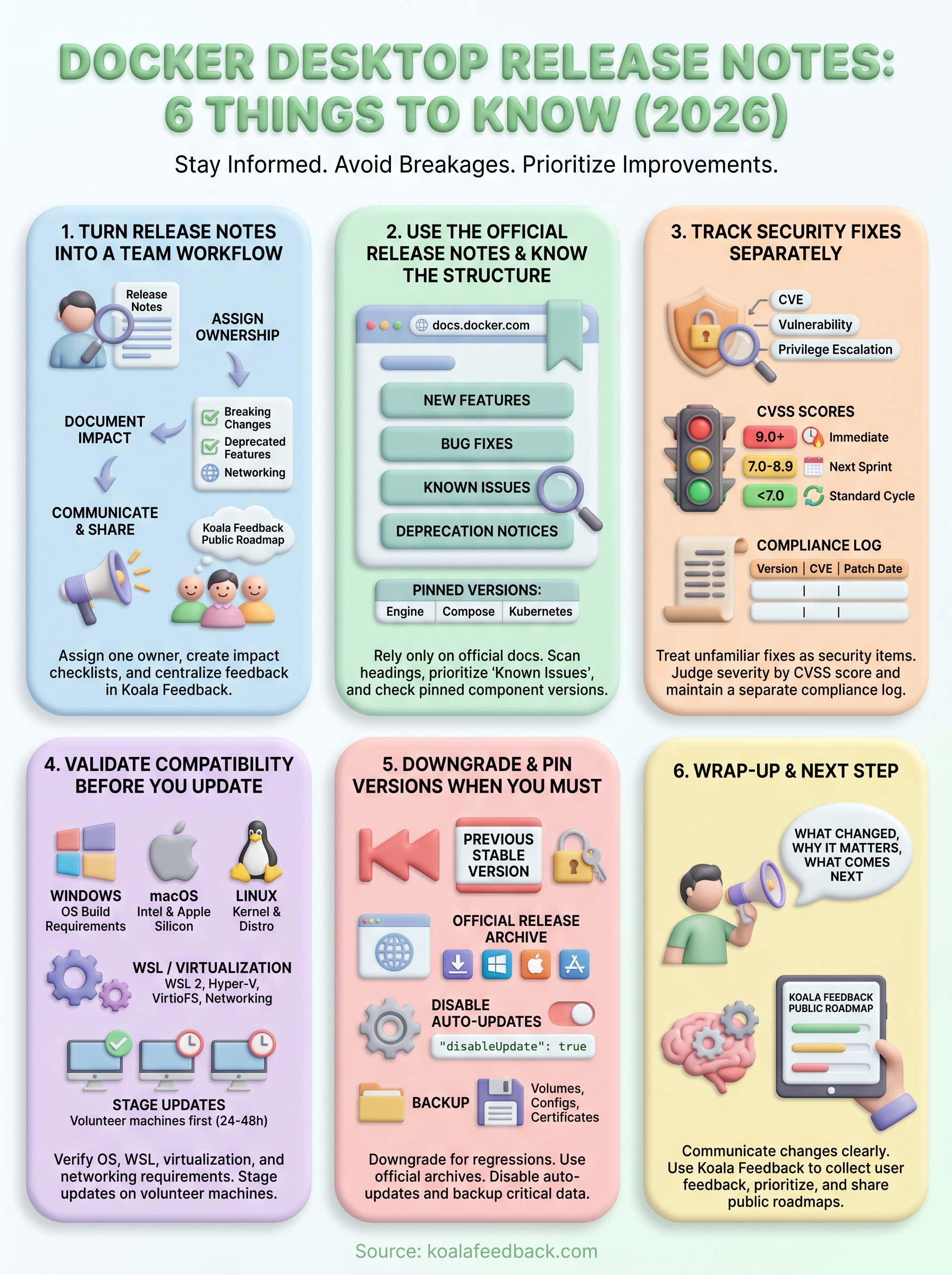
Staying on top of Docker Desktop release notes takes more than a quick scroll through a changelog. You need a clear owner for each release, a habit of separating security fixes from feature updates, and a tested process for validating compatibility before your team upgrades. When something breaks, you need to downgrade cleanly and pin versions until a stable fix ships.
The same discipline applies to how your own product communicates changes. Your users want the same clarity from you that you expect from Docker: what changed, why it matters, and what comes next. Koala Feedback gives you the tools to collect user feedback, prioritize what to build, and publish a public roadmap that keeps everyone informed. If you want a faster way to close the loop between your users and your team, start tracking feedback with Koala Feedback today.

Start today and have your feedback portal up and running in minutes.